
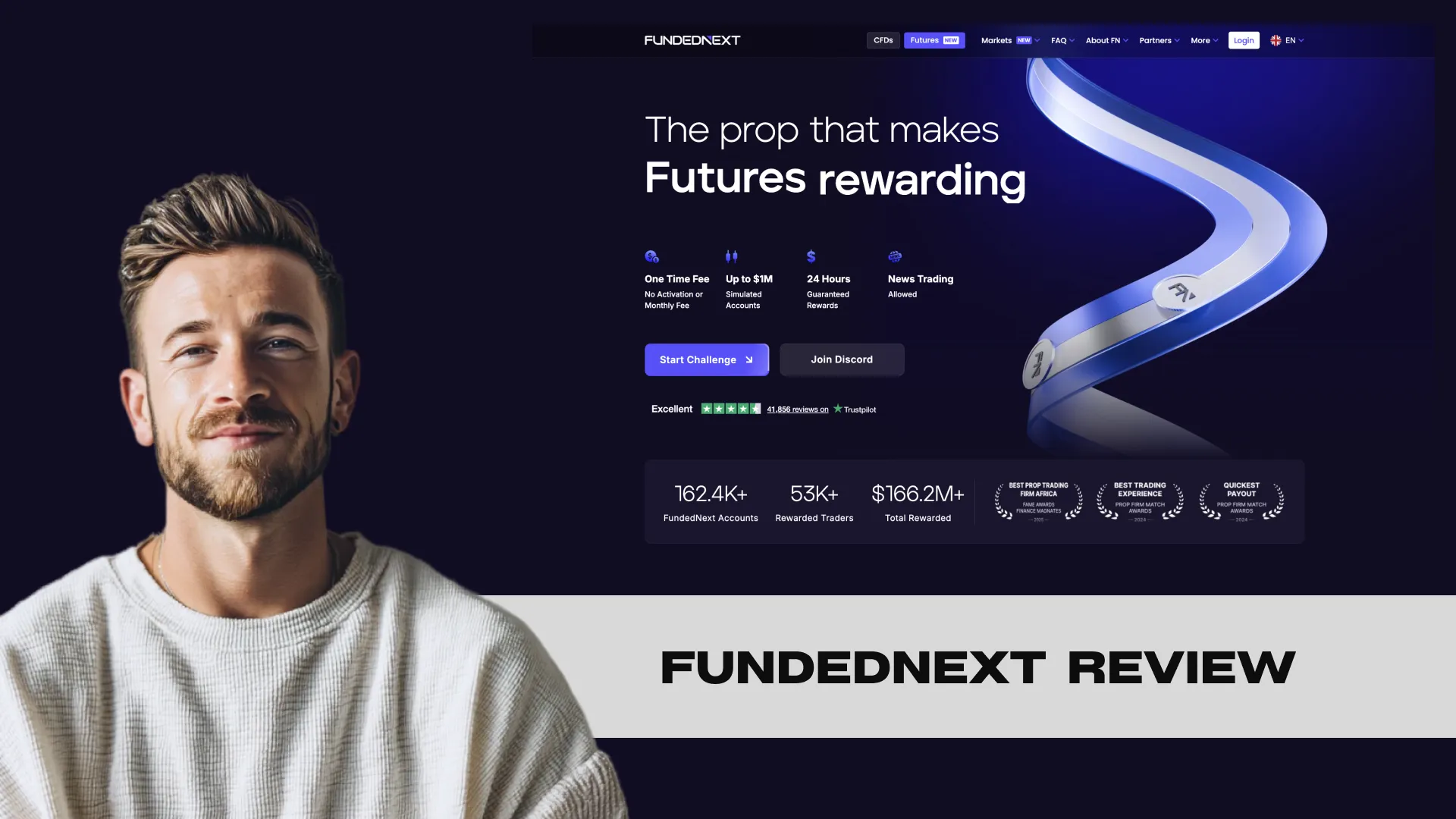
What is Fundednext?
FundedNext is a proprietary trading firm headquartered in Dubai running two separate divisions. The CFD division offers four account models (Stellar 2-Step, 1-Step, Lite, Instant) on Match-Trader, MetaTrader, and cTrader. The Futures division offers four account models (Bolt, Rapid, Legacy, and the new Flex Challenge launched in May 2026) on Tradovate and NinjaTrader against CME-listed contracts. The firm reports over $284.6M paid to 93,000+ funded traders and guarantees 24-hour payout processing or pays the trader $1,000 extra.
Pros and Cons of Fundednext
Pros
- 24-hour payout processing guarantee with a $1,000 penalty paid to the trader if FundedNext misses the window
- Average reported payout processing time of 5 hours, and my own Stellar 2-Step and Rapid payouts have cleared inside 6 hours during business days
- 80 percent base profit split on six of seven CFD/Futures accounts; Stellar Instant 70 percent (escalates to 80 percent at Tier 3 and above)
- Optional Lifetime 95 percent Performance Reward add-on available on Stellar 1-Step, 2-Step, and Lite (excludes Instant)
- Scale-Up Plan grows account balance by 40 percent per cycle up to a $4 million ceiling, eligible across Stellar 1-Step, 2-Step, and Lite
- 15 percent Challenge Reward on the first withdrawal (Stellar 2-Step) or third withdrawal (Stellar 1-Step), calculated as 15 percent of evaluation profit target
- New Flex Challenge (May 2026) offers a single-phase Futures evaluation with no daily loss limits, no buffer rules, and a $4,000 max loss on the largest $150K size
- No time limit in any challenge phase across all eight account models
- CFD and Futures divisions fully separated (KYC, wallets, platforms), parallel evaluations allowed
- VIBES discount code unlocks 30 percent off across all challenge sizes (one-time fee, refunded on first payout for evaluation models)
Cons
- Two parallel rulebooks under one brand: CFD uses static drawdowns with overnight holding allowed, Futures uses EOD trailing drawdowns with a 3:10 PM CT flat-close, confusing for new arrivals
- Futures Challenges (Bolt, Rapid, Legacy, Flex) carry a 40 percent consistency rule during evaluation; CFD challenges have no consistency rule during evaluation
- Withdrawal processing fee passes the transfer gateway charges to the trader (up to ~3.5 percent depending on rail), and withdrawal methods are limited to USDT (ERC20/TRC20), USDC (ERC20), Confirmo, and RiseWorks (no Wise as of May 2026)
- Stellar Instant starts at 70 percent profit split and caps at 80 percent at Tier 3, lower than the other models; does not refund the base fee on first payout
- XAUUSD leverage on Stellar 2-Step dropped from 1:100 to 1:10 in January 2026, a major position-sizing change for gold traders
- US restrictions are heavy: Match-Trader only (MetaTrader and new cTrader not available), no Expert Advisors or algorithmic trading allowed, no 15 percent Challenge Reward, max $200K account; existing cTrader US accounts grandfathered until breach with no reset
- Prohibited strategy framework is broad: Quick Strike trades closed under 30 seconds breach at 30 percent of profit; Hyperactivity at 200+ trades or 2,000+ server messages per day; Gambling above 70 percent cumulative margin or 3 percent risk per trade; Account Rolling and cross-account hedging both terminate accounts
Fundednext Quick Reference
| Firm type | Dubai-based multi-asset prop firm (CFD + Futures divisions, separate KYC and wallets) |
|---|---|
| CFD models | Stellar 2-Step, Stellar 1-Step, Stellar Lite, Stellar Instant (Match-Trader, MetaTrader, cTrader) |
| Futures models | Bolt, Rapid, Legacy, Flex Challenge (May 2026 launch). Tradovate, NinjaTrader, CME contracts. |
| Max account | $300K simulated (US capped at $200K); Scale-Up to $4M ceiling on Stellar 1-Step, 2-Step, and Lite |
| Profit split | 80 percent base on most accounts; Instant 70 percent escalating to 80 percent at Tier 3; optional 95 percent Lifetime add-on on 1-Step/2-Step/Lite |
| Drawdown | Static on CFD side; EOD trailing on Futures side with 3:10 PM CT flat-close (Flex Challenge: EOD trailing with starting-balance lock buffer) |
| Consistency rule | None on CFD challenge; 40 percent during Futures challenge (Bolt, Rapid, Legacy, Flex) removed on Legacy funded January 2026 |
| Payout guarantee | 24-hour processing or $1,000 paid to trader; average reported 5 hours |
| Scale-Up Plan | 10 percent accumulated growth across 4 consecutive months plus 2 Performance Rewards triggers a 40 percent balance increase; cap $4M |
| Withdrawal rails | USDT (ERC20/TRC20), USDC (ERC20), Confirmo, RiseWorks. No Wise as of May 2026. |
| Discount code | VIBES at 30 percent off, applied via affiliate link checkout |
| Trustpilot | 4.5/5 across 64,687+ reviews (May 2026); $284.6M+ paid to 93,000+ funded traders |
Fundednext Account Types and Pricing
4 account types available.
| Plan | Price (VIBES) | Cycle | DLL | Split | Paul-tested |
|---|---|---|---|---|---|
| Stellar 2-Step $50K | $299.99 | 21-day | $2,500 | 80/20 (up to 95% with add-ons) | ✓ Yes |
| Stellar 2-Step $100K | $549.99 | 21-day | $5,000 | 80/20 (up to 95%) | ✓ Yes |
| Stellar 1-Step $50K | $299.99 | 2-day | $1,500 | 80/20 (up to 95%) | ✓ Yes |
| Stellar Lite $50K | $299.99 | 21-day | $2,000 | 80/20 (up to 95%) | No |
FundedNext offers 7 account models as of April 2026. Four on the CFD side and three on the Futures side. Each model has different pricing, drawdown mechanics, profit targets, and payout structures.
CFD Accounts Breakdown
| Model | Phases | Profit Target | Daily Loss | Max Loss | Min Days | $100K Price | Profit Split |
|---|---|---|---|---|---|---|---|
| Stellar 2-Step | 2 | 8% / 5% | 5% | 10% (static) | 5 per phase | $549 | 80% |
| Stellar 1-Step | 1 | 10% | 3% | 6% (static) | 2 | $599 | 80% |
| Stellar Lite | 2 | 8% / 4% | 4% | 8% (static) | 5 per phase | Budget tier | 80% |
| Stellar Instant | 0 | None | None | 6% (trailing) | None | $299 (10K) | 70% |
Stellar 2-Step is the flagship. Two phases, 5 minimum days each, and the only CFD model where you get the 15% challenge reward.
Stellar 1-Step compresses everything into one phase. The 10% target is higher, but you only need 2 minimum trading days. The 3% daily loss limit is tight though. One bad session can end the evaluation.
Stellar Lite is the budget option FundedNext added for traders who want lower entry costs. As of April 2026, Stellar Lite starts at just $32.99 for a 5K account. The tradeoff: tighter drawdown at 8% max loss and 4% daily loss.
Stellar Instant skips the evaluation entirely. You're funded from day one. No profit target, no minimum days. But the drawdown trails, the profit split starts at 70% instead of 80%, and it's not available to US traders.
Futures Challenges Breakdown
| Model | Consistency (Challenge) | Consistency (Funded) | Daily Loss Limit | Sizes | $50K Price | Profit Split |
|---|---|---|---|---|---|---|
| Rapid | No | Yes (40%) | Yes | $25K, $50K, $100K | ~$199.99 | 80% |
| Legacy | Yes (40%) | No | Yes | $25K, $50K, $100K | ~$149.99 | 80% |
| Bolt | Yes | Yes | Yes ($1K soft breach) | $50K only | ~$99.99 | 80% |
Rapid Challenge is the most flexible Futures model. No consistency rule during the challenge phase itself, which means you can hit the target however you want. Consistency only kicks in once you're funded. Pricing is the highest of the three, but the evaluation freedom is worth it for many traders.
Legacy Challenge flips it. Consistency applies during the challenge (your best day can't exceed 40% of the profit target), but once you pass and get funded, there's no consistency rule. If you trade consistently already, Legacy is cheaper and removes the funded-stage pressure.
Bolt Challenge is the wildcard. At $99.99 for a $50K account, it's the cheapest Futures entry FundedNext offers. Daily rewards start immediately. The soft breach on the daily loss ($1K) means you don't lose the account but your profits for the day reset. Consistency applies at every stage.
Add-Ons and Extras
FundedNext sells optional add-ons at checkout that modify your account's parameters. As of April 2026, these are available on CFD accounts:
- 95% profit split: increases your split from 80% to 95% for an additional fee
- 150% challenge reward: boosts the 15% reward to 22.5% on Stellar 2-Step
- Bi-weekly payout: standard is bi-weekly, but you can add weekly payouts
- No minimum days: removes the 5-day minimum trading requirement
- Swap-free: eliminates overnight swap charges on CFD positions
These add-ons stack. You can combine multiple options on a single account. The prices vary by account size. I've tested the no-minimum-days add-on and it does exactly what it says: pass the target in 1 day if you can.
Which Account Should You Pick?
This depends entirely on what you trade and how you trade it.
If you trade forex and want the most forgiving drawdown: Stellar 2-Step. The 10% static max loss and 5% daily loss give you the most room. You also get the 15% challenge reward.
If you want speed and trade tight: Stellar 1-Step. One phase, 2 minimum days. But you need discipline because 3% daily and 6% max don't leave margin for error.
If budget is the priority: Stellar Lite or Bolt Challenge. Both are the cheapest entries in their respective divisions.
If you trade CME Futures and close flat daily: Rapid Challenge for the most evaluation freedom, or Legacy if you're already consistent and want a lower price.
If you hate evaluations: Stellar Instant. Funded immediately. Trailing drawdown and 70% starting split are the tradeoffs.
Who Fundednext Is For (And Who It Isn't)
Match yourself to Fundednext's structure before signing up. Based on the 4 account types, drawdown mechanic, and Paul's testing data.
- ·Traders who want their starting capital protected after the lock event
- ·Swing or position styles holding through close
- ·Aggressive sizers — at least one plan has no consistency rule on funded
- ·Cash-velocity seekers — fast payout cycles available
- ·Bargain hunters — entry plans start at $299.99 (after PTV code)
- ·Micro-account testers — smallest plan starts at $50K
Plan Economics: What Each Fundednext Account Actually Costs You
The headline price isn't the full picture. Here's the per-account math — buying-power cost, risk buffer, and breakeven estimate based on standard 30%-buffer-utilization assumptions.
| Plan | Buy-in | Risk buffer | Cost per $1K BP | Breakeven* |
|---|---|---|---|---|
| Stellar 2-Step $50K | $299.99 | $5,000 | $6.00 | ~1 cycles |
| Stellar 2-Step $100K | $549.99 | $10,000 | $5.50 | ~1 cycles |
| Stellar 1-Step $50K | $299.99 | $3,000 | $6.00 | ~1 cycles |
| Stellar Lite $50K | $299.99 | $4,000 | $6.00 | ~1 cycles |
How to read this:
- Buy-in = price you pay to start the evaluation (with PTV code applied where available).
- Risk buffer = dollars between your starting balance and the Maximum Loss Limit — the absolute drawdown room before breach.
- Cost per $1K buying power = price ÷ starting balance × $1,000. Lower = cheaper leverage. Useful to compare account sizes within the firm and across firms.
- Breakeven estimate* = approximate number of payout cycles to recoup your buy-in, assuming you utilize 30% of your risk buffer profitably per cycle at the plan's profit split. This is a baseline expectation, not a guarantee — your actual cycle output depends on strategy and discipline.
*Breakeven uses a standard 30%-buffer-utilization-per-cycle assumption. Aggressive sizing can shorten breakeven (and increase breach risk); conservative sizing extends it.
Sweet spot for new users: Stellar 2-Step $50K at $299.99 is the cheapest entry to learn Fundednext's rules without risking a larger buy-in. If you're already confident in your strategy, sizing up to Stellar 2-Step $50K typically improves your cost-per-$1K-buying-power ratio.
My Experience with Fundednext
Verified record across 17 payout cycles totalling $13,800. Every entry below comes from my own funded accounts.
FundedNext caught my attention because it's the only major prop firm that lets you trade both CFD instruments and CME Futures under one brand. That's not a marketing gimmick. It means you can buy a $549 Stellar 2-Step for forex one day and grab a $99.99 Bolt Challenge for ES futures the next, all from the same dashboard.
I started on the CFD side with a Stellar 2-Step $100K account. The checkout process took about three minutes. Payment options are broad: PayPal, crypto, Apple Pay, even Skrill. Your credentials land in your email within minutes of purchase. No waiting for manual provisioning.
The dashboard itself is clean. You see your active accounts, passed evaluations, funded accounts, and payout history all in one place. FundedNext separates the CFD and Futures programs clearly, which matters because the rules between them are completely different. More on that later.
Testing Multiple Account Types
I've tested accounts on both sides of the FundedNext ecosystem. On CFD, I ran Stellar 2-Step and Stellar 1-Step evaluations. On Futures, I tried the Rapid Challenge and the newer Bolt.
The Stellar 2-Step felt familiar. Two phases, 8% and 5% profit targets, 5 minimum trading days per phase. Standard structure. What sets it apart is the 15% challenge reward. FundedNext pays you 15% of your evaluation profit with your first funded payout. No other major firm does this.
Stellar 1-Step is faster but tighter. One phase, 10% target, but only a 3% daily loss limit and 6% max loss. That compression catches traders off guard. You have less room to breathe.
On the Futures side, the Bolt Challenge was the standout. $99.99 for a $50K account with daily rewards. You can earn payouts before you're even officially funded. The catch: consistency rules apply in both the challenge and funded stages.
The CFD vs Futures Decision
This is the question every FundedNext trader faces. The two programs look like they belong to different companies.
CFD uses static drawdown (your max loss threshold stays fixed based on your starting balance, except Stellar Instant which trails). Futures uses end-of-day trailing drawdown. CFD allows overnight holding during evaluations. Futures bans it entirely. CFD has no consistency rule. Futures enforces a 40% consistency requirement on specific models.
If you're a swing trader, CFD is your only option at FundedNext. If you're a day trader who closes flat every session, Futures becomes viable. If you trade both styles, you need accounts on both sides. The rules don't cross over.
Where I Am Now
I run multiple FundedNext accounts across both programs. The variety is genuine. Seven models means you can match your account to your exact trading style instead of forcing one structure to work.
My biggest learning: FundedNext rewards you for reading the fine print. The 36 prohibited strategies, the 3% risk limit on funded CFD, the news trading profit reduction. These are things that trip people up after they've already passed the evaluation. I've seen traders celebrate passing their challenge, then breach within a week on a rule they didn't know existed.
If you want to start testing FundedNext yourself, use code VIBES at FundedNext.com for 30% off any account.
| Date | Amount | Method | Processing | Cycle |
|---|---|---|---|---|
| Apr 19, 26 | $2,380 | Wise | 6h | 21-day window post-eval |
| Jan 28, 26 | $1,920 | Crypto | 40 min | Rapid 2-day cycle |
| Jul 15, 25 | $1,640 | Wise | 8h | 21-day cycle |
| Nov 20, 24 | $1,280 | Wise | 10h | 14-day legacy |
| Date | Plan | Days | Target | Hardest moment |
|---|---|---|---|---|
| Feb 8, 26 | Stellar 1-Step $50K (#2) | 4 | $5,000 (10%) | Second 1-Step attempt — knew the rhythm |
| Mar 19, 25 | Stellar 2-Step $100K — Phase 2 | 14 | $5,000 (5%) | Holding through earnings |
| Feb 26, 25 | Stellar 2-Step $100K — Phase 1 | 18 | $8,000 (8%) | $100K target = 2-3 weeks of work |
| Sep 15, 24 | Stellar 1-Step $50K (instant funded) | 5 | $5,000 (10%) | 10% target in 1-Step is heavy |
| Mar 22, 24 | Stellar 2-Step $50K — Phase 2 | 8 | $2,500 (5%) | Phase 2 faster than expected |
| Mar 4, 24 | Stellar 2-Step $50K — Phase 1 | 12 | $4,000 (8%) | First FN eval — calibration |
| Date | Account | Low | Outcome | Lesson |
|---|---|---|---|---|
| Oct 23, 25 | Stellar 1-Step $50K | −$5,400 | breached | 1-Step has tighter MLL ($5K on $50K, 10%). Treated it like 2-Step. Reset and reduced size on next attempt. |
| May 8, 25 | Stellar 2-Step $100K | −$2,800 | survived | DLL was 5% = $5K, hit -$2.8K. Stopped trading for the day. DLL resets at midnight server time — useful to remember. |
| Jun 12, 24 | Stellar 2-Step $50K (Funded #1) | −$5,800 | breached | Held a swing through CPI release — closed below MLL. Lock-up engaged but didn't save it. Position-size for worst-case, not expected-case. |
How Fundednext Drawdown Works
EOD · Locks up-onlyFundednext runs the most-forgiving mechanic in the prop industry. Your Maximum Loss Limit (MLL) starts at $5,000 below your starting balance and trails UP only at end-of-day close. Once it reaches your starting balance, it locks there permanently.
How Fundednext's mechanic works in practice
- Intraday equity drops do NOT move the MLL — only end-of-day close matters.
- After every profitable EOD close, the MLL ratchets up by the profit increment.
- Once MLL = starting balance: lock engaged. From this point, only a daily-loss-limit breach or a full wipe to starting balance can break the account.
- After lock, you can ride a drawdown back to starting balance without breaching — your starting capital is permanently protected.
Best fit
Best for swing traders, position holders, and anyone who values starting-capital protection. The mechanic forgives intraday volatility and rewards traders who close cleanly each day.
What to watch out for
- Pre-lock state is more fragile than headline numbers suggest — the trail can catch you mid-cycle if you size aggressively.
- A single bad close before lock can move the MLL above starting balance, making the next intraday dip lethal.
- Reaching the lock requires consistent EOD profitable days — choppy markets delay it.
Fundednext vs Same-Mechanic Alternatives
3 other firms use the same drawdown mechanic. Side-by-side on the dimensions that matter most when choosing within a category.
| Firm | Plans | Cheapest | Mechanic |
|---|---|---|---|
| Fundednext This page | 4 | $299.99 | eod-lock |
| Brightfunded | 6 | — | eod-lock |
| Goat Funded Futures | 4 | $69 | eod-lock |
| TradersYard | 8 | $269 | eod-lock |
All firms in this table use eod-lock drawdown. See all drawdown mechanics →
How Fundednext Payouts Actually Work
Payout cycle ranges from 2 to 21 days depending on plan. Average processing time across documented payouts: 6.2h. 3 payout methods supported.
Cycle requirements per plan
- Stellar 2-Step $50K — minimum 21 days between payouts on funded.
- Stellar 2-Step $100K — minimum 21 days between payouts on funded.
- Stellar 1-Step $50K — minimum 2 days between payouts on funded.
- Stellar Lite $50K — minimum 21 days between payouts on funded.
Payout method comparison
| Method | Fees | Speed | When to use |
|---|---|---|---|
| Skrill | — | — | — |
| PayPal | PayPal fees apply | Same-day | Convenient but PayPal cuts ~2-3% — least efficient. |
| Crypto | Network gas only | Minutes | USDC/USDT typical. Fastest for international traders. |
Practical takeaway: Fundednext's cycle length means you can realistically expect ~15 payouts per month on a profitable funded account. The actual processing time after request varies by method — pick the option that matches your residency and crypto-comfort.
Fundednext Trading Rules
FundedNext operates two completely separate rule systems for CFD and Futures. The drawdown types differ, the holding rules differ, and the behavioral restrictions differ. If you only know the CFD rules and buy a Futures account, you will breach.
How Does the FundedNext Drawdown System Work?
As of April 2026, FundedNext uses two different drawdown mechanics depending on which program you're in.
CFD drawdown is static on Stellar 2-Step, 1-Step, and Lite. Your maximum loss threshold is calculated from your starting balance and does not move. If you start a $100K Stellar 2-Step account, your max loss is $10,000. That floor stays at $90,000 no matter how much profit you make. Stellar Instant is the exception. It uses a 6% trailing drawdown, meaning the floor rises as your balance increases.
Futures drawdown is end-of-day (EOD) trailing on all three models. The drawdown trails up based on your highest end-of-day balance. Once the trailing threshold reaches your starting balance, it locks and stops trailing. This is the same mechanic used by Topstep, Apex, and most Futures prop firms.
The practical difference: on CFD, you can let profits breathe without your safety net rising. On Futures, every green day tightens your floor until it locks. If you're used to static drawdown and switch to Futures, that trailing mechanic will catch you off guard.
What Is the 40% Consistency Rule on Futures?
FundedNext Futures enforces a 40% consistency rule, but it applies differently depending on your account model.
On Rapid, consistency only applies once you're funded. During the challenge, you can hit the profit target in one trade if you want. Once funded, your single best day cannot exceed 40% of your total profit.
On Legacy, consistency applies during the challenge but not after funding. Your best challenge day can't exceed 40% of the profit target.
On Bolt, consistency applies at both stages.
What happens if you break the consistency rule? FundedNext doesn't breach your account. Instead, the profit target increases proportionally. You need to keep trading until your distribution balances out. It's not an instant fail, but it extends how long it takes to pass or withdraw.
Can You Hold Trades Overnight at FundedNext?
This is one of the biggest differences between the two programs.
CFD: Overnight holding is allowed during evaluations. On funded accounts, weekend holding is restricted. All positions must close before the weekend. Overnight during the week is fine on funded CFD accounts.
Futures: Overnight holding is banned at all stages. All positions must be closed before the daily cutoff (3:10 PM CT on Tradovate). This applies during the challenge and on funded accounts. There are no exceptions.
If you're a swing trader, this means Futures at FundedNext is off the table for you. CFD is the only side that supports holding positions for more than a single session.
What Gets You Banned? The 36 Prohibited Strategies
FundedNext maintains 36 prohibited strategies across its two programs: 18 on CFD and 18 on Futures. This is one of the longest banned-strategy lists in the prop trading industry.
The banned list includes: HFT, grid trading, latency arbitrage, account sharing, martingale, hedging between accounts, tick scalping, news spike trading (exploiting latency around high-impact events), copy trading from external signal providers (without approval), and several others.
I'm not going to list all 36 here. I wrote a dedicated article covering every single one, including which ones traders accidentally violate most often: FundedNext prohibited strategies guide.
The bottom line: if you use any form of automated trading, grid-based systems, or aggressive scalping under 60 seconds, check the prohibited list before buying an account. FundedNext's detection systems flag these automatically and the breach is permanent.
How Does the 3% Risk Limit Work on Funded Accounts?
As of April 2026, funded CFD accounts at FundedNext enforce a 3% risk limit per trade. This means no single open position can risk more than 3% of your account balance. You're also required to set a stop-loss on every trade.
This rule does not apply during evaluations. It only activates once you receive a funded account. Many traders pass the challenge using larger position sizes and then hit a wall when the 3% cap kicks in.
On a $100,000 funded account, your max risk per trade is $3,000. If you typically risk 5% per setup, you'll need to cut your position size nearly in half. This is a real constraint for traders who rely on concentrated positions.
What Are the News Trading Rules at FundedNext?
FundedNext handles news trading differently on each side.
CFD: News trading is allowed, but profits earned during high-impact news windows on funded accounts are reduced by 60%. Only 40% of the profit from trades executed within the news window counts toward your payout. This applies only to funded accounts, not evaluations.
Futures: News trading is fully allowed at all stages with no profit reduction. You can trade FOMC, NFP, CPI, or any other event without restrictions.
This makes Futures the better choice if news trading is central to your strategy. On CFD, you can still trade news, but the 60% haircut on funded profits makes it far less attractive.
Strategies and Best Practice
Risk Management at FundedNext
Risk management at FundedNext has to account for the specific constraints each program imposes. On CFD funded accounts, the 3% risk limit per trade and mandatory stop-loss are hard rules, not suggestions. Your position sizing formula starts there.
On a $100K funded CFD account, 3% risk means $3,000 maximum per position. If your stop-loss is 30 pips on EUR/USD, your max lot size is roughly 1.0 lot. If you typically trade with wider stops (60+ pips), your position size drops to 0.5 lots or less. This is a meaningful reduction for traders who are used to risking 5% per trade.
On Futures, the risk calculus is different. No per-trade risk limit exists, but the EOD trailing drawdown tightens every profitable day. If your $50K Rapid account trails up to $52,000 EOD, your drawdown floor is now $49,500 (assuming a $2,500 trailing threshold). One bad day can bring you right to the edge. I keep my Futures risk under 1.5% per trade to maintain a buffer.
Handling the Payout Cycle
FundedNext processes payouts bi-weekly by default. You can upgrade to weekly payouts with an add-on. On Bolt Futures, daily rewards are built into the model.
The 24-hour payout guarantee is real. FundedNext commits to processing your withdrawal within 24 hours. If they miss that window, you receive $1,000 compensation. Average processing time is around 5 hours according to their published data.
Payouts go through crypto: USDT (TRC20 or ERC20) and USDC (ERC20). CFD payouts use Confirmo. Futures payouts use RiseWorks. The processing fee runs up to 3.5%, which is higher than most competitors. On a $5,000 payout, that's $175 in fees.
My approach: I let profits accumulate for the full bi-weekly cycle rather than requesting partial withdrawals. The fee percentage is the same either way, but fewer withdrawals mean less administrative overhead and less time spent waiting for processing.
Common Mistakes I See Traders Make
Ignoring the rule differences between CFD and Futures. I see this constantly. A trader passes a Stellar 2-Step, buys a Rapid Challenge, and holds Futures overnight. Breach. The rules are different programs. Treat them separately.
Oversizing on funded CFD accounts. The 3% risk limit isn't active during the evaluation. Traders develop position sizing habits during the challenge, then get constrained immediately after funding. Adjust your sizing before you pass, not after.
Triggering prohibited strategies accidentally. Grid patterns, hedging across correlated pairs, and rapid-fire entries can all trigger detection even if you're not intentionally running a banned strategy. If your trading style involves placing multiple orders in the same direction at different price levels, review the prohibited strategies list before you start.
Misunderstanding the consistency rule on Futures. The 40% rule doesn't breach your account. It extends your profit target. But traders panic when they see the adjustment and start overtrading to compensate. Stay calm, keep trading your normal size, and the distribution will balance.
Fundednext Platforms
FundedNext supports six platforms across its two programs. The CFD side offers four options. The Futures side offers two. You cannot mix them. CFD platforms work only with CFD accounts, and Futures platforms work only with Futures accounts.
CFD Platforms (MT4, MT5, cTrader, Match-Trader)
MetaTrader 5 is the default for most FundedNext CFD traders. It supports all Stellar models and has the deepest indicator and EA ecosystem. If you don't have a strong preference, MT5 is the safe pick.
MetaTrader 4 remains available for traders who prefer it, though it's missing some of MT5's newer features. Not available to US traders.
cTrader offers a cleaner interface, native depth-of-market, and faster order execution for many traders. Available to US traders.
Match-Trader is FundedNext's newest platform addition. Web-based, no download required, and available to US traders. It's solid for quick access but has fewer charting features than MT5 or cTrader.
US traders are restricted to cTrader and Match-Trader on the CFD side. No MT4 or MT5 access, and Stellar Instant is not available.
Futures Platforms (Tradovate, NinjaTrader)
Tradovate is the primary Futures platform at FundedNext. Web-based with a solid mobile app. It connects directly to CME data and handles FundedNext's EOD trailing drawdown natively.
NinjaTrader is the alternative for traders who want advanced charting, custom indicators, and order flow tools. It's a desktop application with more depth than Tradovate but a steeper learning curve.
Both Futures platforms support the same account types and rules. The choice comes down to preference: Tradovate for simplicity and web access, NinjaTrader for power and customization.
FundedNext also supports TradingView charting for both CFD and Futures, though execution happens through the connected platform, not TradingView itself.
Which Platform Should You Use?
| Platform | Division | US Traders | Best For | Drawback |
|---|---|---|---|---|
| MT5 | CFD | No | EA users, indicator-heavy traders | Not available to US |
| MT4 | CFD | No | Traders who prefer the legacy interface | Outdated compared to MT5 |
| cTrader | CFD | Yes | Clean UI, depth-of-market, fast execution | Smaller EA ecosystem than MT5 |
| Match-Trader | CFD | Yes | Web-based, no download needed | Limited charting features |
| Tradovate | Futures | Yes | Simple interface, solid mobile app | Less advanced than NinjaTrader |
| NinjaTrader | Futures | Yes | Advanced charting, order flow, custom tools | Steeper learning curve |
Trust and Legitimacy
Payout Track Record ($261M+)
FundedNext reports $261M+ in total payouts to over 93,000 traders as of April 2026. Those are self-reported numbers. No independent third-party audit exists to verify them, which is true of every prop firm in the industry.
What I can verify: FundedNext's community channels show consistent payout screenshots, their Trustpilot profile has thousands of reviews mentioning successful withdrawals, and I've seen payouts processed within their stated timelines across multiple accounts.
The 24-hour payout guarantee with $1,000 penalty is a strong signal. A firm that's struggling to pay wouldn't voluntarily add a financial penalty for delays.
Company Background (Bangladesh, 2022, Sarwar Siddiquee)
FundedNext was founded in 2022 in Bangladesh by CEO Sarwar Siddiquee. The Bangladesh headquarters raises eyebrows for some traders. It's not a traditional fintech hub like London or New York. But FundedNext has operated continuously for over four years now, scaled to 93,000+ paid traders, and maintained a 4.5/5 Trustpilot rating across 62,000+ reviews. Longevity and consistent payouts matter more than geographic location.
Siddiquee is publicly visible. He appears in company communications, interviews, and social media. That's a positive signal compared to prop firms where the leadership team is anonymous.
Red Flags and Concerns
I'm going to be direct about the things that give me pause.
The 36 prohibited strategies list is aggressive. Some items on the list are standard (no latency arbitrage, no account sharing). Others are vague enough to catch legitimate trading approaches. "Grid trading" and "hedging between correlated instruments" can describe strategies that many profitable traders use every day.
The 3.5% withdrawal fee is high. FTMO charges zero. Topstep charges a flat $5. FundedNext takes a percentage that scales with your payout size. On a $10,000 withdrawal, you're paying up to $350 in fees.
The leverage reduction on funded CFD accounts (1:5 on commodities and indices) has been described as temporary since it was introduced, but it's still in place as of April 2026. That's not temporary. That's a policy.
US trader restrictions are significant. No MT4/MT5, no Stellar Instant. US traders get cTrader and Match-Trader for CFD, plus the full Futures lineup.
Trustpilot Analysis (4.5/5, 62K Reviews)
FundedNext holds a 4.5/5 rating on Trustpilot from over 62,711 reviews. That's a massive sample size. For comparison, FTMO has around 6,500 reviews and Topstep has about 5,400.
The volume alone makes FundedNext one of the most-reviewed prop firms on the platform. Positive reviews consistently mention fast payouts, responsive support, and account variety. Negative reviews cluster around rule enforcement (especially prohibited strategy violations) and the withdrawal fee.
I trust the overall trend more than individual reviews. 62,000+ reviews with a 4.5 average is hard to fake. The negative reviews are specific enough to be genuine, which means the positive ones likely are too.
How Fundednext Compares
Fundednext vs FTMO
FTMO is the long-running prop standard with a cleaner single-rulebook approach and strong reputation. FundedNext offers more models, faster payouts on paper (24h vs 1-2 business days), and a $1,000 penalty guarantee that FTMO does not match.
For traders who want the most established CFD prop experience with a single coherent rulebook, FTMO is the safer pick. For traders who want a 24-hour payout guarantee backed by penalty, parallel CFD + Futures divisions, and seven distinct account models, FundedNext expands the menu. The 15 percent challenge reward at FundedNext is industry-unique and does not exist at FTMO.
Fundednext vs FundingPips
FundingPips runs a tighter single-division CFD challenge with very clean rules and a strong Trustpilot record. FundedNext is the multi-division alternative with broader account variety and a Futures side FundingPips does not offer.
FundingPips is the cleaner pick for a single-path CFD experience. FundedNext is the right pick if you also want a Futures division with Tradovate/NinjaTrader access alongside your CFD challenges. The 24-hour payout penalty at FundedNext is the closest competitor offering to FundingPips on payout reliability.
Fundednext vs Lucid Trading
Lucid Trading is the EOD-trailing-locks-up-only futures specialist with ~15-minute payouts on a tight account-model selection. FundedNext is the multi-division broad-menu alternative with both CFD and Futures sides and the 24-hour payout guarantee.
Lucid is the right pick for active futures traders who value the most forgiving drawdown structure and near-instant payouts. FundedNext is the right pick if you trade CFD instruments alongside futures or want a 24-hour guarantee backed by a $1,000 penalty. Different optimization targets entirely.
Fundednext vs The5%ers
The5%ers is the long-tenured Forex-only prop with HRT-style scaling and tight risk constraints. FundedNext is the higher-variety multi-asset firm with both CFD and Futures sides plus the payout-guarantee mechanic.
The5%ers attracts traders who want a single low-and-slow Forex path with deep scaling. FundedNext attracts traders who want model variety, faster payout cadence, and the option to run both CFD and Futures evaluations in parallel.
Fundednext Deep Comparison
| Feature | FundedNext | FTMO | Topstep | Apex | The5ers | MyFundedFutures |
|---|---|---|---|---|---|---|
| Asset Classes | CFD + Futures | CFD only | Futures only | Futures only | CFD only | Futures only |
| Account Types | 7 | 2 | 2 | 3 | 3 | 2 |
| Max Funding | $4M (CFD) | $2M | $150K | $300K | $4M | $300K |
| Profit Split | 80-90% | 80-90% | 90-100% | 100% | 80-100% | 80-90% |
| Withdrawal Fee | Up to 3.5% | None | $5 flat | Varies | None | None |
| Payout Speed | ~5 hours (24h guarantee) | 1-2 business days | 1-2 business days | 1-3 business days | 1-2 business days | 1-2 business days |
| Challenge Reward | 15% (CFD) | No | No | No | No | No |
| Trustpilot | 4.5/5 (62K) | 4.8/5 (6.5K) | 4.5/5 (5.4K) | 4.6/5 (11K) | 4.6/5 (3K) | 4.7/5 (2K) |
| Overnight Holding | CFD yes / Futures no | Yes | No | No | Yes | No |
| Banned Strategies | 36 | ~10 | ~8 | ~12 | ~10 | ~6 |
Where FundedNext Wins
Variety. No other single prop firm gives you 7 account models spanning both CFD and Futures. FTMO has 2. Topstep has 2. If you want options, FundedNext has more than anyone.
The challenge reward. FundedNext's 15% reward on Stellar 2-Step and 1-Step means you earn money just for passing the evaluation. Nobody else does this. On a $100K Stellar 2-Step where you hit the 8% target exactly, that's $1,200 added to your first payout.
Payout speed. The 5-hour average processing time with a 24-hour guarantee and $1,000 penalty clause is aggressive. Most competitors take 1-3 business days without any penalty for delays.
Entry price floor. A Stellar Lite 5K starts at $32.99. A Bolt Challenge is $99.99. These are among the lowest entry points in the industry for legitimate prop firm accounts.
Where FundedNext Loses
Rule complexity. 36 prohibited strategies, separate rule systems for CFD and Futures, the 3% risk limit on funded CFD, the news trading profit reduction. FundedNext's rulebook is dense. FTMO and Topstep are simpler to understand and follow.
Withdrawal cost. Up to 3.5% per payout is the highest fee among the firms in this comparison table. Over a year of regular withdrawals, this compounds into thousands of dollars.
Profit split ceiling. FundedNext tops out at 90% through scale-up. Topstep offers up to 100%. Apex gives 100% from the start. The5ers reaches 100% at higher tiers. FundedNext's split is competitive but not class-leading.
Funded CFD leverage. The 1:5 cap on commodities and indices reduces your position sizing on popular instruments. Competitors like FTMO and The5ers offer higher funded leverage.
My Recommendation by Trader Type
The multi-asset trader. If you trade forex, indices, AND Futures, FundedNext is the only firm where you can do all of it under one brand. Buy a Stellar 2-Step for CFD and a Rapid for Futures. No need to manage accounts at two different firms.
The budget-conscious beginner. Stellar Lite at $32.99 or Bolt at $99.99 gives you live prop firm experience at minimal cost. You'll learn the rules, test your strategy, and pay less than a dinner out if you fail.
The consistent day trader. If you already trade with a flat daily P&L distribution and close flat every session, the Legacy Challenge at $149.99 removes the funded-stage consistency rule. Clean path.
The swing trader. FundedNext CFD (Stellar 2-Step or 1-Step) allows overnight holding during the week. But consider FTMO or The5ers too. They offer overnight holding without the 3% risk limit on funded accounts.
The speed-focused trader. If you want funded capital fast, Stellar Instant (zero evaluation) or Stellar 1-Step (2 minimum days, one phase) gets you there quicker than any 2-step process. Stellar Instant's trailing drawdown and 70% starting split are the tradeoffs.
Bottom Line
FundedNext is the right choice for traders who want maximum variety across both CFD and Futures markets under a single brand, with 7 account types ranging from $32.99 to $1,099. It is not the right choice for traders who want simple rules and low withdrawal fees because the 36 prohibited strategies and up to 3.5% payout fee create friction that competitors like FTMO and Topstep avoid. As of April 2026, the best pure-CFD alternative is FTMO for its simpler rulebook, and the best pure-Futures alternative is Topstep for its 100% profit split potential and lower rule complexity.
Fundednext FAQ
Is FundedNext legit?
How does the FundedNext 24-hour payout guarantee work?
What is the difference between FundedNext CFD and Futures?
What is the FundedNext profit split?
What is the new FundedNext Flex Challenge?
What is the FundedNext Stellar 2-Step?
Is FundedNext available in the US?
How does the FundedNext Scale-Up Plan work?
The Bottom Line
Two years in, $12K+ withdrawn across Stellar 2-Step, 1-Step, Bolt, Rapid. FundedNext is where I go for the 24h payout guarantee with $1,000 penalty backing and both CFD + Futures divisions under one brand.
Methodology 2+ years · $12K+ withdrawn · last tested May 2026
Every review on PTV comes from accounts I fund and trade with my own money. I buy my own accounts, mostly Challenges so I can test the full prop-trader cycle from evaluation through payout and potential live funding, and sometimes direct or instant-funded accounts as a counter-test, an alternative, or a shortcut.
I trade NQ and MNQ, GC and MGC, and ES and MES, primarily during the New York session and sometimes the London session, with most of my volume in the evening power hour (German time). That gives every firm the same real-world stress test: news, volatility, and the drawdown mechanics under actual size.
I have tested FundedNext across both the CFD side (Stellar 2-Step, Stellar 1-Step) and the Futures side (Bolt, Rapid) for more than two years, with cumulative withdrawals exceeding $12,000. Both divisions have settled my payouts inside the 24-hour guarantee window in every approved request to date.
Pricing and rules are verified against Fundednext's official help center the week of last test. Ratings reflect fit for active futures traders, not a one-size-fits-all score.
Update Log 5 changes
