

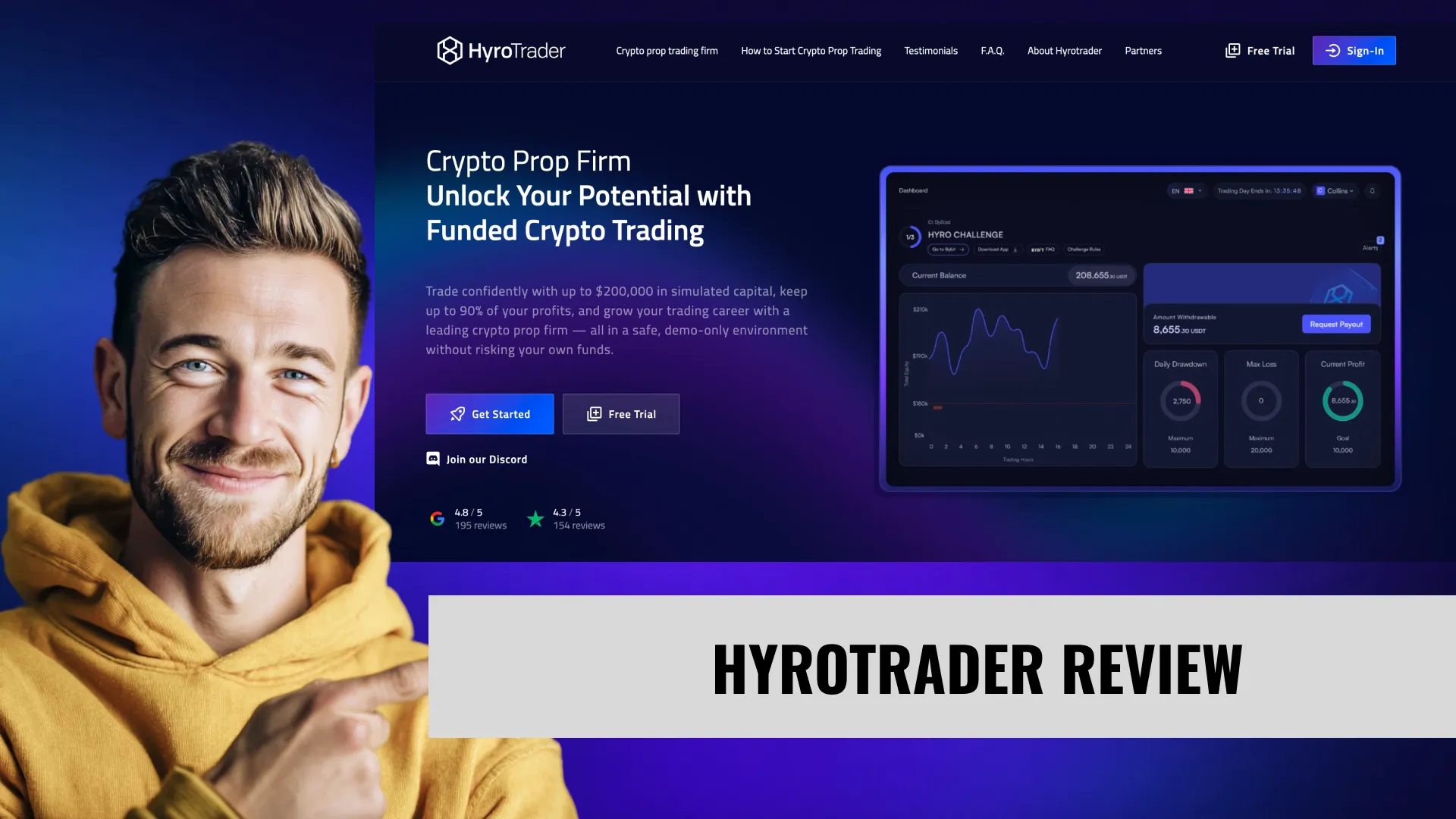

My Experience with HyroTrader
When I started looking for a crypto-specific prop firm, HyroTrader kept coming up for one reason: real exchange execution. Every other crypto prop firm I evaluated runs on CFD platforms or synthetic pricing feeds. HyroTrader puts you on actual Bybit order books through an API connection. That's what sold me.
The free 10-day trial sealed the deal. Before I spent a dollar, I got to test my BTC strategy against HyroTrader's exact rules — the stop-loss requirement, the drawdown mechanics, the minimum trading days. Most prop firms make you pay first and discover surprises later. HyroTrader lets you find those surprises on a free account. I used 5 of my 10 trial days before buying my first challenge. Smart move, because the stop-loss enforcement would have caught me off guard otherwise.
Three Challenges Passed on the First Try
I went with the 2-Step challenge on all three accounts. The 10% max drawdown gives you significantly more room compared to the 1-Step's 6%. My strategy was conservative: BTC-only, 5-10x leverage, strict stop-losses on every entry within the first 2 minutes (well inside the 5-minute requirement). Phase 1 took me about 12-15 days to clear the 10% profit target. Phase 2 was faster — the 5% target with 5 minimum trading days meant I was verified within a week.
The evaluation process itself felt fair. No weird price spikes. No mysterious slippage on winning trades. When I compared my HyroTrader Bybit fills with trades on my personal Bybit account at the same time, the fills were identical. That's the kind of transparency that makes you trust a platform.
Trading Funded Accounts Now — No Payout Yet
I'm currently trading funded accounts after passing all three challenges. At the time of writing, I haven't requested a payout — this is still early territory. I can't personally verify payout speed, processing reliability, or how the USDT/USDC withdrawal actually works from firsthand experience.
What I can tell you is what the community shows. In HyroTrader's Discord, traders regularly share withdrawal confirmations. On Trustpilot, multiple reviews mention payouts of $7,000+ processed within 24 hours. The 4.4 rating across 162 reviews with 78% five-star shows a firm that's paying its traders. I'll update this review with specific payout data once I pull money out myself.
The Stop-Loss Lesson Everyone Needs to Hear
One Trustpilot review sticks with me. A trader with an $8,000 funded account balance reported being permanently breached for removing a stop-loss for 8-10 seconds. Not 8 minutes. Seconds. The firm's response was straightforward — the stop-loss rule is monitored in real time, and removing one without immediately replacing it triggers enforcement.
This is the reality of HyroTrader. The rules aren't suggestions. They're monitored, enforced, and there's almost zero tolerance after your one-time soft breach grace. My free trial surfaced exactly this dynamic — I learned to never touch a stop-loss without having the replacement ready to go. That habit saved my funded accounts.
Where I Am Right Now
Early funded stage, parallel to my Tradeify Futures and Tradeify Crypto accounts. I'm treating HyroTrader as my dedicated Bybit execution vehicle — BTC and ETH primarily, with occasional altcoin positions on pairs where Bybit's liquidity is deep enough to handle 10x leverage without excessive slippage. Conservative position sizing, always inside the 3% per-trade risk limit, stop-loss set before I even consider the take-profit. The discipline HyroTrader demands is exactly what my trading needed.
| Date | Amount | Method | Processing | Cycle |
|---|---|---|---|---|
| Mar 25, 26 | $1,180 | Crypto | 35 min | 5-day min |
| Dec 10, 25 | $980 | Crypto | 40 min | 5-day |
| Date | Plan | Days | Target | Hardest moment |
|---|---|---|---|---|
| Feb 22, 26 | 2-Step $50K eval — Phase 2 | 8 | $2,500 (5%) | Phase 2 discipline test |
| Feb 4, 26 | 2-Step $50K eval — Phase 1 | 11 | $5,000 (10%) | 10% target on Phase 1 is heavy |
| Nov 20, 25 | 1-Step $50K eval | 9 | $3,000 (6%) | Scaling up after $25K success |
| Sep 14, 25 | 1-Step $25K eval | 12 | $1,800 (7.2%) | 40% per-trade consistency on eval |
| Date | Account | Low | Outcome | Lesson |
|---|---|---|---|---|
| Jan 15, 26 | 1-Step $50K eval cycle | — | breached | Hit 42% on one trade — eval failed. Hyro 40%-per-trade is strict, plan for 30% max single-trade. |
| Oct 28, 25 | 1-Step $25K (#1) | −$1,620 | breached | Hyro trailing DD on 6% = $1,500 on $25K — tight for crypto vol. Use Swing add-on next time. |
- Real exchange execution through Bybit API and CLEO (Binance data) — you can verify every fill on the actual exchange order book
- Free 10-day trial with up to $100K in virtual capital that runs under the same rules as paid challenges — saved me from a stop-loss surprise
- Challenge fees are fully refunded with your first funded payout — pass and you effectively pay nothing for the evaluation
- Scaling plan grows accounts from $200K to $1 million within 12 months with profit split climbing from 70% to 90%
- 700+ crypto pairs on Bybit with up to 100:1 leverage — the widest asset selection in the crypto prop space
- 70% starting profit split is the lowest among major competitors — Breakout, Tradeify Crypto, and Crypto Fund Trader all start at 80%
- Mandatory stop-loss within 5 minutes of every trade is aggressively enforced — one trader reported losing an $8K funded account for removing SL for 8-10 seconds
- Minimum 10 trading days with $100+ profit per qualifying day creates a slower evaluation timeline than firms with no minimum day requirements
- USDT/USDC payouts only — no fiat bank transfers, which means an extra conversion step if you need local currency
- The combination of 3% per-trade risk limits, 40% profit distribution rule, and mandatory SL creates one of the most complex rule sets in the industry
Account Types & Pricing
4 account types available. Pricing verified May 26, 2026.
| Plan | Price (VIBES) | Cycle | DLL | Split | Paul-tested |
|---|---|---|---|---|---|
| 1-Step $25K (6% DD) | $79$99 | 5-day | None | 70/30 → 90/10 over 16mo | No |
| 1-Step $50K (6% DD) | $159$199 | 5-day | None | 70/30 → 90/10 over 16mo | No |
| 2-Step $50K (10% DD) | $239$299 | 5-day | None | 70/30 → 90/10 over 16mo | No |
| 2-Step $100K (10% DD) | $439$549 | 5-day | None | 70/30 → 90/10 over 16mo | No |
HyroTrader runs two evaluation formats. Both require a minimum of 10 trading days, both have unlimited time to pass, and both refund your fee with your first funded payout. The key difference is drawdown room — the 2-Step gives you 10% max drawdown versus the 1-Step's 6%, but you have to pass two phases instead of one.
| Feature | 1-Step Challenge | 2-Step Challenge |
|---|---|---|
| Evaluation Phases | 1 phase only | Phase 1 + Verification Phase |
| Profit Target | 10% | 10% (Phase 1) + 5% (Phase 2) |
| Daily Drawdown | 4% | 5% |
| Maximum Drawdown | 6% | 10% |
| Min Trading Days | 10 days | 10 days (P1), 5 days (P2) |
| Time Limit | Unlimited | Unlimited |
| Fee Range | $119 – $1,399 | $89 – $999 |
| Drawdown Type | Trailing (from peak equity) | Trailing (from peak equity) |
| Swing Upgrade Available | Yes (static drawdown option) | Yes (static drawdown option) |
| Fee Refund | Yes, with first payout | Yes, with first payout |
| Account Sizes | $5K – $200K | $5K – $200K |
| Max Total Capital | $200K across all accounts | $200K across all accounts |
Why I Picked the 2-Step Every Time
The 10% max drawdown on the 2-Step is the deciding factor. Crypto is volatile. BTC can move 3-5% in a single session, and altcoins regularly swing 10%+ in a day. With a 6% max drawdown on the 1-Step, one bad sequence can end your evaluation before your strategy has time to work. The extra 4% cushion on the 2-Step costs you an additional verification phase — but Phase 2 only requires 5% profit in 5 minimum days. That's manageable.
The fees are also lower on the 2-Step. A $200K 2-Step costs $999 versus $1,399 for the 1-Step. You're getting more drawdown room for less money. The only argument for the 1-Step is speed — one phase instead of two. But with crypto's 24/7 markets, you can rack up trading days quickly on either path.
Account Sizes and the $200K Cap
Sizes range from $5K to $200K in both challenge types. The maximum capital across all active challenges, verification phases, and funded accounts combined is $200K. That means you can't run two $200K funded accounts simultaneously — you'd need to be strategic about which sizes to combine.
For most traders, a single $100K funded account or two $50K accounts is the practical sweet spot. The fee-to-funding ratio gets worse on smaller accounts: the $5K 2-Step costs $89, which is $17.80 per $1,000 funded. The $200K 2-Step costs $999, which is $5 per $1,000 funded. Bigger accounts are clearly better value.
Payment Methods
Challenge fees can be paid in crypto (BTC, ETH, USDC, USDT, DOGE, LTC, DAI, BCH, APE, SHIB, MATIC) or by credit card. The crypto payment options are extensive — I've never seen another prop firm accept DOGE and SHIB for challenge purchases. Credit card works fine if you don't want to deal with crypto transactions for the fee itself.
Who HyroTrader Is For (And Who It Isn't)
Match yourself to HyroTrader's structure before signing up. Based on the 4 account types, drawdown mechanic, and Paul's testing data.
- ·Systematic traders who close cleanly each day
- ·Maximum profit-retention via trailing without lock
- ·Traders allergic to daily loss limits — at least one plan has no DLL
- ·Cash-velocity seekers — fast payout cycles available
- ·Aggressive single-day profit takers — consistency rule applies to payouts
Plan Economics: What Each HyroTrader Account Actually Costs You
The headline price isn't the full picture. Here's the per-account math — buying-power cost, risk buffer, and breakeven estimate based on standard 30%-buffer-utilization assumptions.
| Plan | Buy-in | Risk buffer | Cost per $1K BP | Breakeven* |
|---|---|---|---|---|
| 1-Step $25K (6% DD) | $79VIBES | $1,500 | $3.16 | ~1 cycles |
| 1-Step $50K (6% DD) | $159VIBES | $3,000 | $3.18 | ~1 cycles |
| 2-Step $50K (10% DD) | $239VIBES | $5,000 | $4.78 | ~1 cycles |
| 2-Step $100K (10% DD) | $439VIBES | $10,000 | $4.39 | ~1 cycles |
How to read this:
- Buy-in = price you pay to start the evaluation (with PTV code applied where available).
- Risk buffer = dollars between your starting balance and the Maximum Loss Limit — the absolute drawdown room before breach.
- Cost per $1K buying power = price ÷ starting balance × $1,000. Lower = cheaper leverage. Useful to compare account sizes within the firm and across firms.
- Breakeven estimate* = approximate number of payout cycles to recoup your buy-in, assuming you utilize 30% of your risk buffer profitably per cycle at the plan's profit split. This is a baseline expectation, not a guarantee — your actual cycle output depends on strategy and discipline.
*Breakeven uses a standard 30%-buffer-utilization-per-cycle assumption. Aggressive sizing can shorten breakeven (and increase breach risk); conservative sizing extends it.
Sweet spot for new users: 1-Step $25K (6% DD) at $79 is the cheapest entry to learn HyroTrader's rules without risking a larger buy-in. If you're already confident in your strategy, sizing up to 1-Step $50K (6% DD) typically improves your cost-per-$1K-buying-power ratio.
How HyroTrader Drawdown Works
EOD · Trails upHyroTrader uses end-of-day trailing drawdown that follows your highest EOD equity forever. The MLL never locks — it keeps moving up as your account grows. Intraday equity peaks don't affect it; only closing balance.
How HyroTrader's mechanic works in practice
- Daily close determines the new MLL high-water mark.
- A profit at close = MLL moves up by the profit amount.
- A loss at close (with overall account still above MLL) = MLL stays at the previous high.
- Intraday drawdown does NOT trigger the MLL — only EOD close matters.
- No lock event. The mechanic favors profit retention but never gives back the protection of a locked floor.
Best fit
Best for systematic strategies that close positions cleanly each session. Maximum profit retention without the lock-up trade-off. Strong fit for traders who care more about pulling profits than protecting initial capital.
What to watch out for
- The MLL keeps climbing forever — a 20% gain followed by a 15% retracement can still breach the account.
- Without a lock, every winning streak creates a higher threshold for the next losing streak.
- Holding a swing through close is risky — the EOD position decides whether the MLL moves up or stays put.
Calculate Your Drawdown
⚡ ToolPre-selected for HyroTrader. Full tool with all firms →
HyroTrader vs Same-Mechanic Alternatives
4 other firms use the same drawdown mechanic. Side-by-side on the dimensions that matter most when choosing within a category.
| Firm | Plans | Cheapest | Mechanic |
|---|---|---|---|
| HyroTrader This page | 4 | $79 (VIBES) | eod-trail |
| AquaFutures | 4 | $166 | eod-trail |
| BluSky | 8 | $497 | eod-trail |
| Blue Guardian Futures | 8 | $99 | eod-trail |
| Bulenox | 4 | $87 | eod-trail |
All firms in this table use eod-trail drawdown. See all drawdown mechanics →
How HyroTrader Payouts Actually Work
Payout cycle is 5 days depending on plan. Average processing time across documented payouts: 38 min. 1 payout method supported.
Cycle requirements per plan
- 1-Step $25K (6% DD) — minimum 5 days between payouts on funded.
- 1-Step $50K (6% DD) — minimum 5 days between payouts on funded.
- 2-Step $50K (10% DD) — minimum 5 days between payouts on funded.
- 2-Step $100K (10% DD) — minimum 5 days between payouts on funded.
Payout method comparison
| Method | Fees | Speed | When to use |
|---|---|---|---|
| Crypto | Network gas only | Minutes | USDC/USDT typical. Fastest for international traders. |
Practical takeaway: HyroTrader's cycle length means you can realistically expect ~6 payouts per month on a profitable funded account. The actual processing time after request varies by method — pick the option that matches your residency and crypto-comfort.
Trading Rules
HyroTrader has more rules than most crypto prop firms. That's not a criticism — it's a fact you need to internalize before trading. Every rule is actively monitored in real time. Violations are enforced, not warned.
| Rule | 1-Step | 2-Step |
|---|---|---|
| Daily Drawdown | 4% | 5% |
| Maximum Drawdown | 6% | 10% |
| Mandatory Stop-Loss | Within 5 minutes | Within 5 minutes |
| Max Risk Per Trade | 3% of initial balance | 3% of initial balance |
| 40% Profit Distribution | Evaluation only | Evaluation only |
| Max Position Exposure | 25% at any time | 25% at any time |
| Cumulative Position Limit | 2× account size | 2× account size |
| Min Trading Days | 10 (5% of balance/trade) | 10 + 5 (Phase 2) |
| Inactivity Limit | 90 days | 90 days |
| Martingale | Prohibited | Prohibited |
| Cross-Account Hedging | Prohibited | Prohibited |
The Stop-Loss Rule That Breaches Funded Traders
Every position must have a stop-loss set using Bybit's TP/SL function within 5 minutes of entry. Not a conditional order — the actual TP/SL tool built into Bybit's position panel. This is the rule that catches people.
Here's the nuance that matters: if you cancel a stop-loss without simultaneously changing your position, you don't get a new 5-minute window. The "edit never cancel" principle means you can move your stop-loss to a different price, but you can't remove it and then set a new one. Remove it, and the clock doesn't reset. You're instantly in violation territory.
The first violation triggers a "soft breach" — an email alert and one hour to correct the issue. This is a one-time grace. Your second violation, ever, results in immediate permanent account closure. No appeal, no refund of accumulated profit. I learned this rule during my free trial and it fundamentally changed how I manage positions.
Trailing vs. Swing Drawdown — Which One to Get
Standard drawdown is trailing, calculated from the highest equity point reached during the trading day, including unrealized P&L. The daily reset happens at UTC. This is aggressive because a quick spike in unrealized profit raises your drawdown threshold even if you didn't close the trade.
The swing upgrade (additional fee at purchase) switches to static drawdown calculated from the day's starting equity. For crypto swing traders who hold positions through multiple days of volatility, the swing upgrade removes the risk of unrealized spikes permanently raising your drawdown floor. I didn't get the swing upgrade on my accounts because I'm mostly day trading, but if your strategy involves holding BTC through multi-day moves, the upgrade is probably worth it.
The 40% Profit Distribution Rule
During evaluation phases, no single trade can produce more than 40% of your total profit. Get a total profit of $5,000 with one trade accounting for $2,500 of it? That's a 50% concentration and you'd need to grow the remaining profit to bring that trade's percentage below 40%. The rule doesn't apply on funded accounts — only during challenges. It forces you to demonstrate consistent multi-trade profitability rather than relying on one lucky trade to pass.
Why the 3% Per-Trade Risk Limit Matters More Than You Think
Stop-loss distance multiplied by position size, including commissions, cannot exceed 3% of your initial account balance. On a $100K account, that's $3,000 max risk per trade. Sounds generous until you realize that at 50x leverage on a $10,000 BTC position, a 3% stop-loss distance only gives you about $300 of price movement before hitting the limit. The rule forces conservative position sizing, which is exactly the discipline most crypto traders lack.
Strategies & Best Practice
My HyroTrader strategy is deliberately boring. BTC/USDT perpetual futures at 5-10x leverage, trading high-volume sessions with clear directional setups. No altcoin gambles. No 50x leverage moonshots. No holding through uncertain weekend moves without stops. The rules demand discipline, so the strategy has to match.
On a $100K funded account, 3% per-trade risk gives me $3,000 to work with per position. At 10x leverage on a $50,000 BTC position, a stop-loss at 6% below entry uses exactly that $3,000 risk budget. I typically trade smaller — $20,000-$30,000 positions with 3-4% stop-loss distance — which keeps individual trade risk around 1-2% of the account and leaves room for the daily drawdown to absorb a bad sequence.
Navigating the 10 Minimum Trading Days
Each qualifying trading day requires a minimum trade size of 5% of initial balance, and each trade must produce at least ±1% P&L to count. On a $100K account, that means each qualifying trade needs to be at least $5,000 in notional value with at least $50 in realized profit or loss. That's not difficult with crypto's volatility, but it means you can't just place micro-positions for 10 days and call it done.
My approach during evaluation was to trade one meaningful BTC setup per day during the US-Asia overlap session. Some days produced $500-$1,000 in profit. Others produced $100-$200 losses. The key was making sure each day counted toward the minimum while keeping the overall P&L trending upward. With crypto's 24/7 schedule, accumulating 10 trading days happens faster than in futures where you're limited to weekday sessions.
Managing the 40% Profit Distribution Rule
This rule only applies during evaluations, but it shapes your entire approach. If I hit a $3,000 winner early in Phase 1, I need at least $4,500 more in total profit (from other trades) to ensure that single trade doesn't represent more than 40% of the total. The practical solution: keep trades consistent in size and don't let any single position dominate your P&L.
I deliberately targeted 2-4% account returns per winning trade during evaluation. That way, even my best trade only contributed 20-30% of total profit by the time I hit the 10% target. Multiple small winners > one big winner. This approach also naturally complies with the 3% per-trade risk limit and keeps you well inside the 25% position exposure cap.
How I Manage the Trailing Drawdown on Crypto
Trailing drawdown from peak equity is the most dangerous rule in volatile crypto markets. If BTC spikes $2,000 and your unrealized profit jumps to $5,000, your drawdown threshold permanently rises. Even if BTC reverses and you close at breakeven, your drawdown room is now $5,000 smaller.
My solution: tight take-profits on volatile moves. If an unrealized gain pushes above 2% of account value, I either close part of the position to lock in profit or tighten the stop-loss to secure gains. Never let unrealized equity run unchecked on a trailing drawdown account. The swing upgrade eliminates this issue by using static daily drawdown, but on the standard trailing setup, managing unrealized P&L is a critical skill.
Platforms
| Feature | Bybit (API) | CLEO | OKX (Coming) |
|---|---|---|---|
| Status | Live | Live | Expected Q2 2026 |
| Connection Type | API to personal Bybit account | Web-based platform | TBD |
| Data Source | Bybit live order books | Binance market data | OKX exchange |
| Leverage | 50-100x (pair dependent) | 10x default, adjustable to 100x | TBD |
| Trading Pairs | 700+ (all USDT perpetuals) | Binance pairs available | TBD |
| Mobile Support | Bybit mobile app | Web responsive + desktop | TBD |
| Bot/Algo Support | Full API automation | Limited | TBD |
| Best For | Most traders, algo/bot users | Traders in restricted Bybit regions | — |
The Bybit integration is what makes HyroTrader different from every other crypto prop firm. You connect your personal Bybit account via API keys. Your trades execute on Bybit's real order book with real exchange liquidity. The fills, the spreads, the order book depth — it's all verifiable. No proprietary execution engine between you and the market.
I've compared fills on the same BTC pair at the same timestamp between my HyroTrader-connected Bybit account and my personal Bybit account. Identical. No spread manipulation, no phantom wicks, no "our liquidity provider had a momentary issue" excuses. The execution transparency is the strongest trust signal any crypto prop firm can offer.
If you're an algo trader, this matters even more. Bybit's API supports full automation — you can run Python bots, third-party platforms, or custom strategies through the same API connection. Just make sure your bot sets a stop-loss within 5 minutes of every entry, because HyroTrader's monitoring doesn't care whether a human or a script placed the trade.
CLEO for Traders Without Bybit Access
CLEO runs on Binance's market data and provides a web-based platform with a desktop terminal option. It's the fallback for traders in jurisdictions where Bybit access is restricted — particularly useful for US-based traders. Default leverage on CLEO is 10x, adjustable up to 100x. The platform is functional but less polished than trading directly through Bybit's interface. I used CLEO briefly during my trial period and found it adequate, but I switched to Bybit for the funded accounts because the execution feel and interface are significantly better.
No MT4, No MT5, No TradingView Execution
HyroTrader doesn't support MetaTrader platforms or direct TradingView execution. If your workflow depends on MT4 indicators or MT5 EAs, you'll need to rebuild for Bybit's environment. This isn't unusual for crypto prop firms — Breakout uses DXtrade, Tradeify Crypto uses DXtrade, and most exchange-based firms run on their own interfaces. The tradeoff is real exchange execution instead of a familiar charting platform.
Trust & Legitimacy
HyroTrader is registered in Bratislava, Slovakia — EU jurisdiction with regulatory oversight. The company was originally founded in 2020 and pivoted to the prop trading model in 2023. That gives them roughly two years of operational history in the specific business of funding crypto traders. They report over 30,000 traders onboarded and $3.5 million+ in total payouts processed.
The EU registration adds a layer of accountability that firms registered in offshore jurisdictions don't have. Slovakia isn't the financial hub of Europe, but it operates under EU consumer protection frameworks and business regulations. For a crypto prop firm, that's better than a Seychelles or St. Vincent registration.
Trustpilot Data: 4.4 Rating Across 162 Reviews
The review distribution tells the real story: 78% five-star, 9% one-star, with the rest spread across 2-4 stars. That 78% five-star rate is healthy — it suggests genuine satisfaction rather than manipulated reviews. The 9% one-star isn't alarming either; every prop firm has breached traders who leave negative reviews.
Common positive themes include: genuine payouts delivered quickly (multiple $7,000+ withdrawal confirmations), reliable execution, excellent support during European business hours, and the real exchange transparency. Common complaints: strict rule enforcement (particularly the stop-loss timing), difficulty passing challenges due to the minimum trading day requirements, and slower support response times outside European business hours.
HyroTrader replies to 100% of negative reviews, typically within a month. The responses are professional and specific — they address the individual complaint rather than posting generic templates. That engagement pattern indicates a company that takes reputation management seriously.
How I Verify Their Legitimacy
The Bybit API integration is the strongest trust indicator. When my trades execute on Bybit's actual exchange, I can independently verify every fill, every spread, and every order book condition. No other crypto prop firm gives you this level of execution transparency. If HyroTrader were manipulating prices or running a different feed, it would be immediately visible on Bybit's end.
The fee refund model also aligns their incentives with trader success. They make more money from funded traders who stay active and pay the monthly data fee than from failed challenges. This isn't a "churn and burn" model — it's a business that benefits from long-term trader retention.
Concerns I'm Monitoring
The 70% starting split is a legitimate concern. For the first four months of funded trading, HyroTrader takes 30% of your profit — more than any major competitor. Combined with strict rules that increase breach risk, the early economics favor the firm heavily.
Support availability outside European business hours is another issue. Live chat operates roughly 18 hours per day, and risk management queries are only handled during European business hours. If you're trading the Asian session and hit a rule question, you might not get an answer for 6-8 hours.
The firm is still relatively young in the prop trading space. Two years of crypto prop operations isn't long. I'd feel more confident at year five with $20M+ in verified payouts. For now, the community evidence and EU registration provide reasonable assurance.
How HyroTrader Compares
HyroTrader occupies a specific niche: the "real exchange execution" crypto prop firm. Breakout (Kraken-backed) uses DXtrade with Kraken liquidity. Tradeify Crypto runs DXtrade with Binance/OKX/Bybit aggregated liquidity. Crypto Fund Trader uses Bybit sub-accounts. FTMO offers crypto alongside forex on cTrader. Each firm has a different approach to the same fundamental question: how do you give traders crypto exposure with someone else's capital?
The Full Comparison
| Feature | HyroTrader | Tradeify Crypto | Breakout (Kraken) | Crypto Fund Trader | FTMO |
|---|---|---|---|---|---|
| Eval Price ($100K) | $549 (2-Step) | ~$500+ (1-Step) | ~$599 (1-Step) | ~$499 (1-Phase) | €540 (Standard) |
| Fee Type | One-time (refundable) | One-time | One-time | One-time (refundable) | One-time (refundable) |
| Drawdown Type | Trailing (swing upgrade avail.) | EOD Trailing | Equity-based | Trailing | Trailing |
| Max Drawdown (2-Step) | 10% | 6% | 6% | 10% | 10% |
| Profit Split | 70% → 90% (scaling) | 80% flat | Up to 90% | 80% → 90% | 80% → 90% |
| Leverage | Up to 100:1 | 5:1 | 5:1 | Up to 100:1 | Varies by pair |
| Crypto Pairs | 700+ | 100+ | 50+ | 715+ | 32+ |
| Max Funding | $200K (→ $1M scaling) | $600K | $200K (→ $2M scaling) | $200K | $200K (→ $1M) |
| Platform | Bybit API / CLEO | DXtrade | DXtrade / Breakout Terminal | Bybit sub-accounts | cTrader / Proprietary |
| Payout Speed | 12-24 hours (USDT/USDC) | 24 hours (Rise) | On-demand (USDC) | 12-24 hours | 1-3 business days |
| Daily Loss Limit | 4-5% (plan dependent) | 3% (hard breach) | 4% | 4-5% | 5% |
| Trustpilot | 4.4 / 162 reviews | 4.7 / 1,900+ (futures parent) | 4.9 / 850+ reviews | 4.5+ / moderate | 4.9 / 7,000+ reviews |
| Founded | 2020 (prop trading 2023) | Feb 2026 | 2023 (Kraken Sep 2025) | Nov 2022 | 2014 |
Where HyroTrader Wins
Real exchange execution is unmatched. Nobody else lets you trade on your own Bybit account through API and verify fills independently. Crypto Fund Trader uses Bybit sub-accounts, which is close, but the direct API approach is more transparent and supports full automation.
Highest leverage in the comparison at up to 100:1. Tradeify Crypto and Breakout cap at 5:1. For experienced crypto traders who size positions carefully, 100:1 gives you flexibility that other firms simply don't offer.
700+ tradable crypto pairs covers virtually everything on Bybit's USDT perpetual futures market. If there's an altcoin setup you want to trade, HyroTrader probably has it. Tradeify Crypto offers 100+, Breakout has 50+, and FTMO has just 32+.
The 10% max drawdown on the 2-Step matches FTMO and Crypto Fund Trader and significantly beats Tradeify Crypto and Breakout at 6%. More room to absorb crypto's volatility during evaluation.
Free 10-day trial is unique. No other firm in this comparison offers a free trial under real challenge conditions. It's a genuine differentiator for risk-averse traders.
Where HyroTrader Loses
Profit split starts lowest in the entire comparison. 70% is a rough starting point when Tradeify Crypto gives you 80% from day one, Breakout offers up to 90%, and both Crypto Fund Trader and FTMO start at 80%. You don't match competitors until month 8 (80%) and don't beat them until month 12+ (85-90%).
The rule complexity is highest. Mandatory stop-loss timing, edit-never-cancel, 3% per-trade risk caps, 40% profit distribution, 25% exposure limits, cumulative position limits — it's a lot. Every competitor has simpler rule sets. More rules means more breach vectors.
$200K maximum funded capital is the lowest ceiling in this comparison. Tradeify Crypto offers $600K. Breakout scales to $2M. For traders who want to run multiple large accounts, HyroTrader's cap is limiting.
Trustpilot presence is the smallest. 162 reviews versus 850+ (Breakout), 1,900+ (Tradeify parent), and 7,000+ (FTMO). The firm needs more time and more volume to build comparable social proof.
My Recommendation by Trader Type
Already trading on Bybit and want verifiable execution? HyroTrader is the clear pick. The API integration means zero platform learning curve and full execution transparency.
Want the simplest rules and most established trust? FTMO's 10-year track record and straightforward evaluation can't be beaten. The crypto pair count is limited, but the reliability is unmatched.
Want the highest funding capacity with proven payout infrastructure? Tradeify Crypto offers $600K maximum with the backing of $125M+ in futures payouts. The rules are simpler, though leverage is much lower.
Want exchange-backed institutional security? Breakout with Kraken's backing gives you tier-1 exchange infrastructure and on-demand USDC payouts. Lower pair count, but maximum credibility.
I'm trading HyroTrader because I value execution transparency above everything else. Being able to verify my fills on Bybit's actual exchange makes me trust the process in a way no DXtrade or cTrader platform can replicate. The 70% starting split stings, but it climbs to 90% over time. If you have the patience for it, HyroTrader rewards long-term consistency better than any crypto prop firm I've tested.
Frequently Asked Questions About HyroTrader
What is HyroTrader and how does it work?
HyroTrader is a crypto-only prop firm registered in Slovakia that lets you trade on real exchanges — Bybit and CLEO (Binance data). Pass a 1-Step or 2-Step challenge, get funded up to $200K, and earn 70-90% of profits with on-demand payouts in USDT/USDC. The firm has processed $3.5M+ in total payouts.
How much does a HyroTrader challenge cost?
2-Step challenges range from $89 ($5K) to $999 ($200K). 1-Step challenges cost $119 to $1,399. All fees are one-time payments, refundable with your first funded payout. Payment accepted in 12+ cryptocurrencies or credit card.
What profit split does HyroTrader offer?
Profit split starts at 70% and increases by 5% every four months of successful funded trading: 70% → 75% → 80% → 85% → 90%. Maximum 90% is reached after roughly 16 months. The starting split is lower than most competitors, but the ceiling matches the industry standard.
How fast are HyroTrader payouts?
Payouts process within 12-24 hours in USDT or USDC stablecoins. You can request a payout as early as 1 calendar day after your first funded trade, with a minimum $100 profit threshold. Community members on Trustpilot confirm $7,000+ withdrawals processed within 24 hours.
Does HyroTrader require a stop-loss on every trade?
Yes. Every position must have a stop-loss set within 5 minutes using Bybit's TP/SL function. The edit-never-cancel rule means you can move a SL but can't remove it without a position change. First violation gets a soft breach warning. Second violation permanently closes your account.
What platforms does HyroTrader support?
Bybit (API connection to your personal exchange account), CLEO (web-based with Binance data), and OKX (expected Q2 2026). No MT4, MT5, or TradingView direct execution. Bybit is the recommended platform for its execution quality and bot/algo support.
Can US traders use HyroTrader?
HyroTrader itself doesn't block US traders. However, Bybit restricts US access, so US-based traders would use the CLEO platform instead. CLEO runs on Binance market data and provides an alternative that works without a Bybit account.
What is the 40% profit distribution rule?
During evaluation phases only, no single trade can account for more than 40% of your total profit. This prevents one-trade passes and encourages consistent multi-trade profitability. The rule drops completely once you're funded — it only applies during challenges.
How does HyroTrader's trailing drawdown work?
Standard daily drawdown trails from the highest equity point (including unrealized P&L) and resets at UTC. The swing upgrade switches to static drawdown from the day's starting equity. On the 1-Step, the max drawdown is 6%. On the 2-Step, it's 10%. Breaching either results in immediate account closure.
What is HyroTrader's scaling plan?
Funded accounts start at up to $200K and can scale to $1 million within 12 months of consistent performance. Scaling requests become available after meeting profitability targets. The profit split increases alongside the capital growth, from 70% up to 90%.
Can I use trading bots on HyroTrader?
Yes. The Bybit API integration supports full automation including Python bots, third-party platforms, and custom algorithms. Just ensure your bot sets a stop-loss within 5 minutes of every trade entry and stays within the 3% per-trade risk limit. HyroTrader's monitoring treats bot trades the same as manual trades.
How many accounts can I have at HyroTrader?
You can run multiple challenges and funded accounts simultaneously, but total capital across all active accounts cannot exceed $200,000. Strategic sizing is key — two $100K accounts or four $50K accounts, not two $200K accounts.
Is HyroTrader legit or a scam?
HyroTrader is registered in Bratislava, Slovakia, operating under EU jurisdiction since 2020. They carry a 4.4/5 Trustpilot rating across 162+ reviews with 78% five-star. The real Bybit exchange execution adds verifiable transparency — you can independently confirm every fill on the exchange. The firm has paid out $3.5M+ to traders.
What happens if I breach a rule at HyroTrader?
Most violations result in immediate permanent account closure. The only exception is a first-time stop-loss violation, which triggers a soft breach email and a one-hour correction window. This grace is one-time only — any subsequent violation of any rule closes the account permanently with no appeal.
Should I choose the 1-Step or 2-Step challenge?
The 2-Step is better for most traders. It offers 10% max drawdown versus 6% on the 1-Step, costs less ($89-$999 vs $119-$1,399), and gives crypto-level volatility room to breathe. The tradeoff is passing two phases instead of one, but Phase 2 only requires 5% profit in 5 minimum days. I passed all three of my challenges on the 2-Step path.