
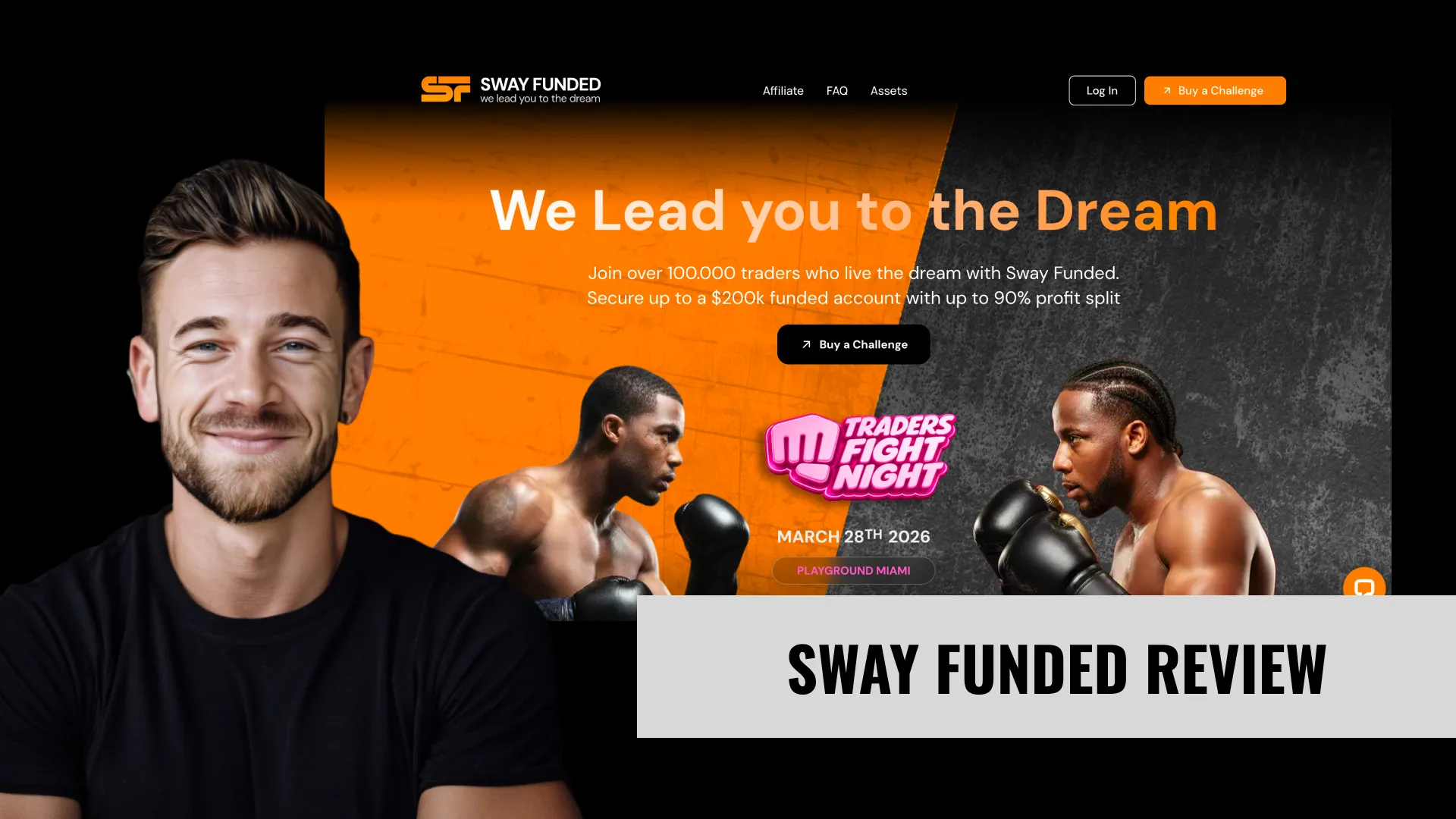

Sway Funded offers three Forex prop firm challenge models — Rapid, Regular, and Instant — starting from $10. Intraday trailing drawdown, crypto-only payouts, and flexible add-ons. Here's what you actually need to know before buying.
- No time limits on any challenge — you can take 6 months on a Rapid $100K if that's what it takes, no pressure clock running
- Add-ons at checkout are genuinely useful: Fixed Drawdown converts the intraday trailing to an EOD system, which is a material risk reduction worth considering
- Entry price is among the lowest in the space — $10 for a Regular $1K account (or $5 with code FIRST), and the fee is credited back on your first payout
- No consistency rule on Rapid and Regular challenges — one big winning day won't count against you or inflate your profit target
- Payouts processed within 24 hours and the 80% split (upgradeable to 90%) is competitive for a Forex prop firm at this price point
- Intraday trailing drawdown is the biggest risk: unrealized losses reduce equity in real-time, meaning a drawdown breach can happen mid-trade even if you don't close at a loss
- Crypto-only payouts with a 1.5% processing fee — no bank wire, no PayPal for withdrawals; if you want fiat, you're converting on your own after receiving crypto
- Liquid Charts is the only platform available — no MT4, no MT5, no cTrader; traders who built their entire strategy on MetaTrader will need to adapt
- Launched in February 2024 — still a young firm; three acquisitions (MyFlashFunding, Glow Node, Karma Prop) show ambition but also raise integration-risk questions for a firm under two years old
- No formal scaling plan — the maximum per funded account is $200K; traders looking for a defined path to $1M+ funded capital don't have a published roadmap here
Account Types & Pricing
3 account types available. Pricing verified May 26, 2026.
| Plan | Price (FIRST) | Cycle | DLL | Split | Paul-tested |
|---|---|---|---|---|---|
| Rapid (1-step) | — | — | None | Up to 90/10 | No |
| Regular (2-step) | $269 | 4-day | $2,500 | Up to 90/10 | No |
| Instant (0-step) | $449 | 4-day | $2,500 | Up to 90/10 | No |
Sway Funded offers three distinct challenge structures. They're not variations of the same model — the risk profile and mechanics are fundamentally different between them.
Rapid Challenge (1-Step)
The Rapid is a single-phase evaluation. Hit 15% profit on a virtual account, stay within the daily and overall drawdown limits, trade for at least 4 days — and you're funded. No confirmation phase.
As of April 2026, the profit target is 15% (default) with a 5% daily loss limit and 10% overall trailing drawdown. The drawdown trails intraday on equity, which I'll cover in full in the Rules section.
| Account Size | Rapid Price | Regular Price | Instant Price |
|---|---|---|---|
| $1,000 | $15 | $10 | $40 |
| $2,500 | $39 | $25 | $99 |
| $5,000 | $75 | $49 | $199 |
| $10,000 | $119 | $79 | $399 |
| $25,000 | $269 | $179 | $996 |
| $50,000 | $449 | $299 | $1,990 |
| $100,000 | $749 | $499 | N/A |
| $150,000 | $1,109 | $739 | N/A |
| $200,000 | $1,449 | $969 | N/A |
The entry fee comes back. Sway credits the full challenge price (including any add-ons you purchased) toward your first payout after passing all phases. It's not a cash refund — it's applied as a credit to your first reward. But it's real money back.
Regular Challenge (2-Step)
The Regular adds a confirmation phase. Phase 1 requires 10% profit, Phase 2 requires 8% — both under the same 5% daily / 10% overall drawdown limits, both requiring 4 minimum trading days. No time limits on either phase.
This is the more conservative path. Lower profit targets per phase, lower entry price, and two separate sessions where you have to demonstrate the rules still apply. It's the structure closest to what FTMO built their reputation on.
Instant Account Challenge (0-Step)
No evaluation. You deposit, you trade funded immediately. The trade-off is a significantly tighter structure: 3% daily loss limit, 8% overall drawdown, and a 20% consistency rule kicks in — no single day can account for more than 20% of your total running profit.
Profit split is tiered: reach 8% profit for 55%, 12% for 65%, 16% for 75%. The account resets after each reward claim. Instant accounts are capped at $50K and no add-ons are available.
For most traders I'd skip the Instant. The consistency rule and lower split make it harder to build sustainable income. It's designed for traders who genuinely can't pass a standard evaluation — but if that's you, the underlying reasons for failing an eval will still apply here.
Who Sway Funded Is For (And Who It Isn't)
Match yourself to Sway Funded's structure before signing up. Based on the 3 account types, drawdown mechanic, and Paul's testing data.
- ·Systematic traders who close cleanly each day
- ·Maximum profit-retention via trailing without lock
- ·Aggressive sizers — at least one plan has no consistency rule on funded
- ·Traders allergic to daily loss limits — at least one plan has no DLL
- ·Cash-velocity seekers — fast payout cycles available
- ·Bargain hunters — entry plans start at $269 (after PTV code)
- ·Micro-account testers — smallest plan starts at $50K
Plan Economics: What Each Sway Funded Account Actually Costs You
The headline price isn't the full picture. Here's the per-account math — buying-power cost, risk buffer, and breakeven estimate based on standard 30%-buffer-utilization assumptions.
| Plan | Buy-in | Risk buffer | Cost per $1K BP | Breakeven* |
|---|---|---|---|---|
| Rapid (1-step) | — | — | — | — |
| Regular (2-step) | $269 | $5,000 | $5.38 | ~1 cycles |
| Instant (0-step) | $449 | $2,500 | $8.98 | ~1 cycles |
How to read this:
- Buy-in = price you pay to start the evaluation (with PTV code applied where available).
- Risk buffer = dollars between your starting balance and the Maximum Loss Limit — the absolute drawdown room before breach.
- Cost per $1K buying power = price ÷ starting balance × $1,000. Lower = cheaper leverage. Useful to compare account sizes within the firm and across firms.
- Breakeven estimate* = approximate number of payout cycles to recoup your buy-in, assuming you utilize 30% of your risk buffer profitably per cycle at the plan's profit split. This is a baseline expectation, not a guarantee — your actual cycle output depends on strategy and discipline.
*Breakeven uses a standard 30%-buffer-utilization-per-cycle assumption. Aggressive sizing can shorten breakeven (and increase breach risk); conservative sizing extends it.
Sweet spot for new users: Regular (2-step) at $269 is the cheapest entry to learn Sway Funded's rules without risking a larger buy-in. If you're already confident in your strategy, sizing up to Regular (2-step) typically improves your cost-per-$1K-buying-power ratio.
How Sway Funded Drawdown Works
EOD · Trails upSway Funded uses end-of-day trailing drawdown that follows your highest EOD equity forever. The MLL never locks — it keeps moving up as your account grows. Intraday equity peaks don't affect it; only closing balance.
How Sway Funded's mechanic works in practice
- Daily close determines the new MLL high-water mark.
- A profit at close = MLL moves up by the profit amount.
- A loss at close (with overall account still above MLL) = MLL stays at the previous high.
- Intraday drawdown does NOT trigger the MLL — only EOD close matters.
- No lock event. The mechanic favors profit retention but never gives back the protection of a locked floor.
Best fit
Best for systematic strategies that close positions cleanly each session. Maximum profit retention without the lock-up trade-off. Strong fit for traders who care more about pulling profits than protecting initial capital.
What to watch out for
- The MLL keeps climbing forever — a 20% gain followed by a 15% retracement can still breach the account.
- Without a lock, every winning streak creates a higher threshold for the next losing streak.
- Holding a swing through close is risky — the EOD position decides whether the MLL moves up or stays put.
Calculate Your Drawdown
⚡ ToolPre-selected for Sway Funded. Full tool with all firms →
Sway Funded vs Same-Mechanic Alternatives
4 other firms use the same drawdown mechanic. Side-by-side on the dimensions that matter most when choosing within a category.
| Firm | Plans | Cheapest | Mechanic |
|---|---|---|---|
| Sway Funded This page | 3 | $269 | eod-trail |
| AquaFutures | 4 | $166 | eod-trail |
| BluSky | 8 | $497 | eod-trail |
| Blue Guardian Futures | 8 | $99 | eod-trail |
| Bulenox | 4 | $87 | eod-trail |
All firms in this table use eod-trail drawdown. See all drawdown mechanics →
How Sway Funded Payouts Actually Work
Payout cycle is 4 days depending on plan. 1 payout method supported.
Cycle requirements per plan
- Regular (2-step) — minimum 4 days between payouts on funded.
- Instant (0-step) — minimum 4 days between payouts on funded.
Payout method comparison
| Method | Fees | Speed | When to use |
|---|---|---|---|
| Crypto | Network gas only | Minutes | USDC/USDT typical. Fastest for international traders. |
Practical takeaway: Sway Funded's cycle length means you can realistically expect ~7 payouts per month on a profitable funded account. The actual processing time after request varies by method — pick the option that matches your residency and crypto-comfort.
Trading Rules
How Does the Trailing Drawdown Work at Sway Funded?
As of April 2026: Sway Funded uses an intraday trailing drawdown calculated on equity, not balance. The floor moves up every time your account reaches a new equity high — including highs generated by open, unrealized profits.
The formula: Drawdown Threshold = Highest Equity Ever Reached − (Starting Balance × drawdown %)
Default limits are 5% daily and 10% overall for Rapid and Regular challenges. If your starting balance is $10,000 and you're up $500, your trail floor is now at $10,000 − $1,000 = $9,000 (for 10% overall). That's fine. But if from that same $10,500 equity peak you then have $1,100 in open losses, your equity is $9,400 — just $400 above the floor. One more $400 adverse tick and the account closes. Automatically. Mid-trade.
This is not a theoretical risk. It's the most common failure mode at firms with intraday trailing. Traders pass the evaluation running clean risk, get funded, loosen up, and a single bad FOMC session ends the account on a trade they were planning to hold through.
The Fixed Drawdown add-on fixes this. With it, the drawdown is recalculated only at server reset (00:00 GMT+3) — not intraday. Open losses no longer count. If this structure concerns you enough to pay for the add-on, pay for it before you start.
What Are the Exact Profit Targets for Each Challenge Type?
| Challenge | Phase 1 Target | Phase 2 Target | With 20/10 Add-On |
|---|---|---|---|
| Rapid | 15% | — | 30% |
| Regular | 10% | 8% | 20% / 16% |
| Instant | 8% / 12% / 16% (tiered) | — | Not available |
The 20/10 add-on doubles both drawdown limits (to 10% daily, 20% overall) and doubles the profit targets accordingly. More room to breathe, longer to run. If you're running a trend-following system with higher volatility, this can be the better setup even at a higher challenge price.
Can You Trade News Events at Sway Funded?
Yes — news trading is generally permitted. The restriction is narrow: no open or held positions within 5 minutes before or after specific restricted events that Sway lists in the client dashboard calendar. They don't ban news trading outright; they designate specific high-impact events and apply a 5-minute buffer.
If an event isn't on the restricted list, you can trade through it.
Can You Hold Positions Overnight or Over the Weekend?
Full overnight and weekend holding is permitted on all challenge types. No forced closure at market close, no weekend hold penalties beyond the standard triple swap charge on Friday for positions held over the weekend. Standard market practice — nothing unusual here.
What Other Rules Apply to EAs and Copy Trading?
Both are allowed. You can run an EA, a signal copier, or copy from a personal broker account into your Sway Funded challenge. The restrictions are on the trading behavior, not the execution method: no HFT, no price arbitrage between brokers, no latency exploitation, no cross-account hedging across multiple Sway Funded profiles.
Hedging within a single account is fine. Hedging two Sway accounts against each other to lock in a risk-free position is not.
Strategies & Best Practice
On the funded account (called SF Trader), there's no profit target. Trade, accumulate at least $10 in net realized profit, complete 4 active trading days, close all open positions — then request your payout. The 24-hour processing claim from their help center is backed up by the majority of Trustpilot reviews.
The split is 80% by default. The 90/10 add-on purchased at the start of your challenge bumps it to 90%.
Payout method: cryptocurrency only. BTC, ETH, USDT, or TRX. There's a 1.5% processing fee plus standard network fees. No bank wire, no PayPal for withdrawals.
If you need fiat, you're receiving crypto and converting elsewhere. For some traders that's completely normal. For others it's an extra step and a tax complexity. Know this going in.
Minimum payout: $10 net realized profit. Low bar. The payout counter resets after each withdrawal — you need another 4 trading days before the next request.
Platforms
Sway Funded uses Liquid Charts and Liquid Charts Pro, provided by their partnered broker Liquid Brokers. There is no MT4, no MT5, no cTrader option.
For a lot of traders this will be a non-issue. Liquid Charts is a capable web-based charting and execution platform with a decent mobile version. ECN execution with spreads from 0.0 pips and a $7/lot commission on standard instruments. If you're building your first prop-funded account and haven't already invested years into MetaTrader setups, you'll adapt quickly.
If your entire system — EAs, templates, indicators, hotkeys — lives in MT4 or MT5, this is a genuine friction point. You'll need to rebuild or run your EA in a different environment and copy signals over. Not impossible, but not nothing either.
The instruments available are extensive: 245–300+ assets across Forex, commodities, indices, stocks, and crypto. The crypto coverage is particularly wide — 160+ USDT-denominated perpetual contracts. If you're interested in trading crypto perpetuals inside a prop structure, Sway has more coverage here than most Forex-focused firms.
Leverage is capped at 1:50 on Forex for Rapid and Regular, 1:30 for Instant Account. Indices and commodities at 1:20. Crypto at 1:10.
Trust & Legitimacy
Payout Track Record
Sway Funded claims $1M+ rewarded to traders with a highest single payout of $165,000. Their Trustpilot sits at 4.2/5 across 720+ reviews as of late 2025. The proportion of verified payout reviews — traders posting screenshots and specific dollar amounts — is strong relative to their age.
The 24-hour payout window shows up consistently in positive reviews. The negative reviews cluster around: KYC delays, account breach disputes (usually intraday drawdown related), and support response times during high-volume periods.
Company Background
Sway Funded FZCO is incorporated at Dubai Silicon Oasis, UAE. Their original Saint Lucia registration (number 2024-00342) dates to February 2024. Payment processing is handled by Corvexia Holding LTD, a Cyprus-incorporated entity.
They're not a broker and don't hold trader funds — all trading is simulated, with Liquid Brokers providing market prices. This is standard for the industry.
Red Flags and Concerns — Being Honest
The youth is the main one. Two years is not long. Three acquisitions in the first 18 months (MyFlashFunding, Glow Node, Karma Prop) is ambitious expansion for a firm still establishing its payout infrastructure. Growth that fast usually works out fine or creates operational problems. There's no way to know in advance which.
The crypto-only payout policy is worth noting if you're in a jurisdiction where crypto receipts trigger immediate tax events. It's not a red flag per se, but it's a consideration.
The "no cash refund" policy is clearly stated in their Terms: challenge fees are not refundable as cash, only credited toward your first payout. If you pass the eval and fail KYC, you still get the fee credited — but you can't cash it out directly.
One unconfirmed item: some third-party review sites list the United States as a restricted region, but this doesn't appear explicitly in Sway's official Terms of Service alongside the 31 confirmed restricted countries. If you're US-based, verify directly with their support before purchasing.
The 31 Restricted Countries (Confirmed)
Afghanistan, Australia, Burma, Crimea, Cuba, DR Congo, Ethiopia, Haiti, Iran, Iraq, Japan, Lebanon, Libya, Malta, New Zealand, North Korea, Pakistan, Republic of Congo, Russia, Saint Lucia, Somalia, South Sudan, Sudan, Syria, Trinidad and Tobago, Tunisia, UAE, Venezuela, Vietnam, Yemen, Zimbabwe. The Terms note this list is "not limited to" these countries.
Yes, Australia and New Zealand are on this list. Significant portions of the prop trading community are based there.
How Sway Funded Compares
| Feature | Sway Funded | FTMO | FundingPips | The Funded Trader | The Trading Pit |
|---|---|---|---|---|---|
| Challenge Type | 1-step / 2-step / Instant | 2-step (Classic) | 1-step / 2-step | 1-step / 2-step / 3-step | 1-step / 2-step |
| Drawdown Type | Intraday trailing (EOD add-on available) | EOD trailing | EOD trailing | EOD trailing | EOD trailing |
| Daily Drawdown | 5% (10% with add-on) | 5% | 4% | 5% | 5% |
| Overall Drawdown | 10% (20% with add-on) | 10% | 8% | 8%–10% | 10% |
| Profit Split | 80% (90% add-on) | Up to 90% | Up to 95% | Up to 90% | 80% |
| Platform | Liquid Charts / Pro | MT4, MT5, cTrader | MT5, Match-Trader | MT4, MT5, DXtrade | MT5, cTrader |
| Time Limit | None 🏆 | 30 days (Phase 1) / 60 days (Phase 2) | Unlimited (most models) | Varies by model | None (most models) |
| News Trading | Allowed (5-min buffer on specific events) | Restricted (2-min buffer) | Allowed | Allowed | Allowed |
| Weekend Holding | Allowed 🏆 | Allowed | Allowed | Allowed | Allowed |
| Payout Methods | Crypto only | Bank wire, crypto, Skrill, Wise | Crypto, bank wire | Crypto, Deel | Bank wire, crypto |
| Min. Challenge Price | $10 🏆 | ~$155 | ~$49 | ~$49 | ~$99 |
| Founded | 2024 | 2016 🏆 | 2022 | 2021 | 2022 |
Where Sway Funded Wins
The pricing is the standout. A $10 challenge fee is the floor of the industry. With code FIRST that drops to $5. For traders who want to run multiple accounts or test a new strategy with minimal capital at risk, nothing beats this entry point.
The add-on system is genuinely differentiated. You can buy Fixed Drawdown (converts to EOD), 90/10 split, Challenge Refresh (restart a failed phase), 20/10 Drawdowns (double the limits), or Profit Target Reduction. No other major Forex prop firm currently offers this level of customization at checkout. You're essentially building your own ruleset within their framework.
No time limits on any challenge is also a real advantage. FTMO gives you 30 days on Phase 1 and 60 on Phase 2. For systematic traders running medium-frequency strategies or traders who'd rather slow down and be methodical, unlimited duration removes the pressure-induced mistakes that time limits create.
Where Sway Funded Loses
Platform. If your system runs on MT4 or MT5, you need to adapt. FTMO, The Funded Trader, The Trading Pit — all offer MetaTrader. Sway doesn't.
Payout flexibility. FTMO pays via bank wire, Wise, Skrill, and crypto. Sway pays crypto only. For traders in countries with strict crypto regulations, or anyone who simply prefers fiat, this is a limitation.
Track record. FTMO has been paying traders since 2016. Sway started in 2024. That's not necessarily disqualifying — many 2022-era firms have excellent records — but you're taking on more counterparty risk with a younger firm.
My Recommendation by Trader Type
Choose Sway Funded if you're a systematic/EA trader who wants unlimited time to let a strategy run, values the flexibility to customize challenge parameters, and is comfortable receiving payouts in crypto. The add-on system is built for you.
Choose Sway Funded if you're a newer Forex trader with limited capital. $10 challenge fees (or $5 with FIRST) let you attempt multiple evals without meaningful financial risk. The no-consistency-rule on Rapid and Regular means one strong day won't be used against you.
Don't choose Sway Funded if you need MetaTrader. If your entire strategy — indicators, EAs, hotkeys, scripts — lives in MT4 or MT5, the friction of switching to Liquid Charts is real. FTMO, The Funded Trader, or The Trading Pit would serve you better.
Don't choose Sway Funded if you need fiat payouts. Bank wire, Wise, PayPal — none of those exist for withdrawals here. If you need to receive fiat directly, look at FTMO or FundingPips.
Bottom Line: Sway Funded is the right choice for Forex and crypto traders who want the cheapest possible path to a funded account with maximum rule flexibility. The intraday trailing drawdown on the default setup is the single biggest risk to manage — add the Fixed Drawdown add-on if you're running anything that holds through volatility. As of April 2026, FTMO remains the better option for traders who prioritize payout flexibility and platform choice; Sway is the better option for traders who prioritize cost and customization.
Frequently Asked Questions About Sway Funded
What is Sway Funded?
Sway Funded is a Forex prop trading firm launched in February 2024 and incorporated as Sway Funded FZCO in Dubai, UAE. It offers three challenge models — Rapid (1-step), Regular (2-step), and Instant (direct funding) — across account sizes from $1,000 to $200,000. All trading is simulated using Liquid Charts via Liquid Brokers; traders are paid a reward split on their virtual account profits.
What makes Sway Funded different from other Forex prop firms?
The main differentiators are entry price, add-on customization, and time flexibility. Challenge fees start at $10 (vs $155+ at FTMO). The add-on system at checkout lets traders switch to EOD drawdown, boost profit split to 90%, or double their drawdown limits before starting. No time limits apply on any challenge type.
What is the profit split at Sway Funded?
As of April 2026, the default profit split is 80% for Rapid and Regular challenge funded accounts. The 90/10 Split add-on, purchased before starting a challenge, upgrades this to 90%. Instant Account holders earn 55%–75% depending on which profit tier they reach (8%, 12%, or 16%).
How does the trailing drawdown work at Sway Funded?
By default, Sway Funded uses an intraday trailing drawdown based on equity. The drawdown floor moves up in real time whenever the account reaches a new equity high — including highs created by unrealized (open) profits. Open losing trades count against your equity immediately, meaning a drawdown breach can occur mid-trade. The Fixed Drawdown add-on changes this to an EOD recalculation only, where open trades don't affect the threshold until server reset at 00:00 GMT+3.
Is there a consistency rule at Sway Funded?
The consistency rule applies only to the Instant Account Challenge. No single trading day may account for 20% or more of your total account profit. If you exceed this threshold, the challenge doesn't fail — your profit target adjusts upward dynamically. Rapid and Regular challenges have no consistency rule.
What platform does Sway Funded use?
Sway Funded uses Liquid Charts and Liquid Charts Pro, both provided by Liquid Brokers. MT4, MT5, and cTrader are not available. Liquid Charts is a web-based ECN platform with spreads from 0.0 pips and $7/lot commission on standard instruments. Mobile access is available via the Android app.
How do payouts work at Sway Funded?
Payouts are crypto only — Bitcoin, Ethereum, Tether (USDT), or Tron (TRX). There is a 1.5% processing fee per withdrawal. Minimum payout is $10 net realized profit. You need at least 4 active trading days in your funded account before requesting a payout. Processing is completed within 24 hours per Sway's help center and verified by Trustpilot reviews.
Does Sway Funded refund the challenge fee?
Not as cash. The entry fee — including any add-ons purchased — is credited toward your first payout after completing all required phases. If you pass the evaluation and fail KYC, you're still entitled to the credit. There are no cash refunds for challenge fees under any circumstances.
Can I use an EA or copy trading at Sway Funded?
Yes. EAs, copy trading from personal brokers, and signal copiers are all permitted on Sway Funded accounts. The restrictions are behavioral: no high-frequency trading, no price arbitrage between platforms, no latency exploitation, and no hedging across multiple Sway Funded accounts. EAs must also comply with Liquid Brokers' Terms of Service.
Is news trading allowed at Sway Funded?
News trading is generally allowed. The restriction is a 5-minute buffer around specific high-impact events listed on the economic calendar in the client dashboard. If an event isn't on the restricted list, you can trade through it without restriction. This is more permissive than FTMO's news trading policy.
Is Sway Funded legit?
Sway Funded is a legitimate prop firm with $1M+ in verified rewards paid, 4.2/5 on Trustpilot across 720+ reviews, and 100,000+ registered traders as of 2025. They're a relatively young firm (founded 2024) with a Dubai-based legal entity. They've acquired three smaller prop firms since launch. No regulatory body governs prop firm challenges as financial instruments — this is standard across the industry.
What countries are restricted from Sway Funded?
As of April 2026, 31 confirmed restricted countries include Australia, New Zealand, Japan, Russia, Iran, North Korea, and 25 others. The Terms note this list is not exhaustive. US-based traders should verify current eligibility directly with Sway's support before purchasing — US restriction is mentioned by some third-party sources but not confirmed in the official Terms.
How does Sway Funded compare to FTMO?
Sway Funded is cheaper to enter ($10 vs $155+), offers more customization via add-ons, and has no time limits. FTMO offers MT4/MT5/cTrader, multiple payout methods including bank wire, and a nearly decade-long track record. The default drawdown structure at FTMO is EOD trailing, which is more forgiving than Sway's default intraday trailing. For traders who want the most permissive environment to build a funded track record at minimal cost, Sway has the edge. For traders who prioritize payout flexibility and platform familiarity, FTMO is still the benchmark.
What is the Sway Funded loyalty program?
Sway Funded runs a token-based loyalty system using SFT (Sway Funded Tokens). Tokens are earned through daily logins, qualifying trades (net PnL ≥ ±0.5% of starting balance per trade), and risk management milestones. They're redeemable for Mystery Boxes containing challenge discounts, cosmetics, and occasionally free funded accounts. A Sway PLUS subscription ($10/month) increases the daily login reward to 40+ SFT and unlocks premium Mystery Boxes. The Spin & Win feature triggers when you purchase a $10K+ challenge, giving you a spin for one of four free Rapid accounts ($10K–$200K).