
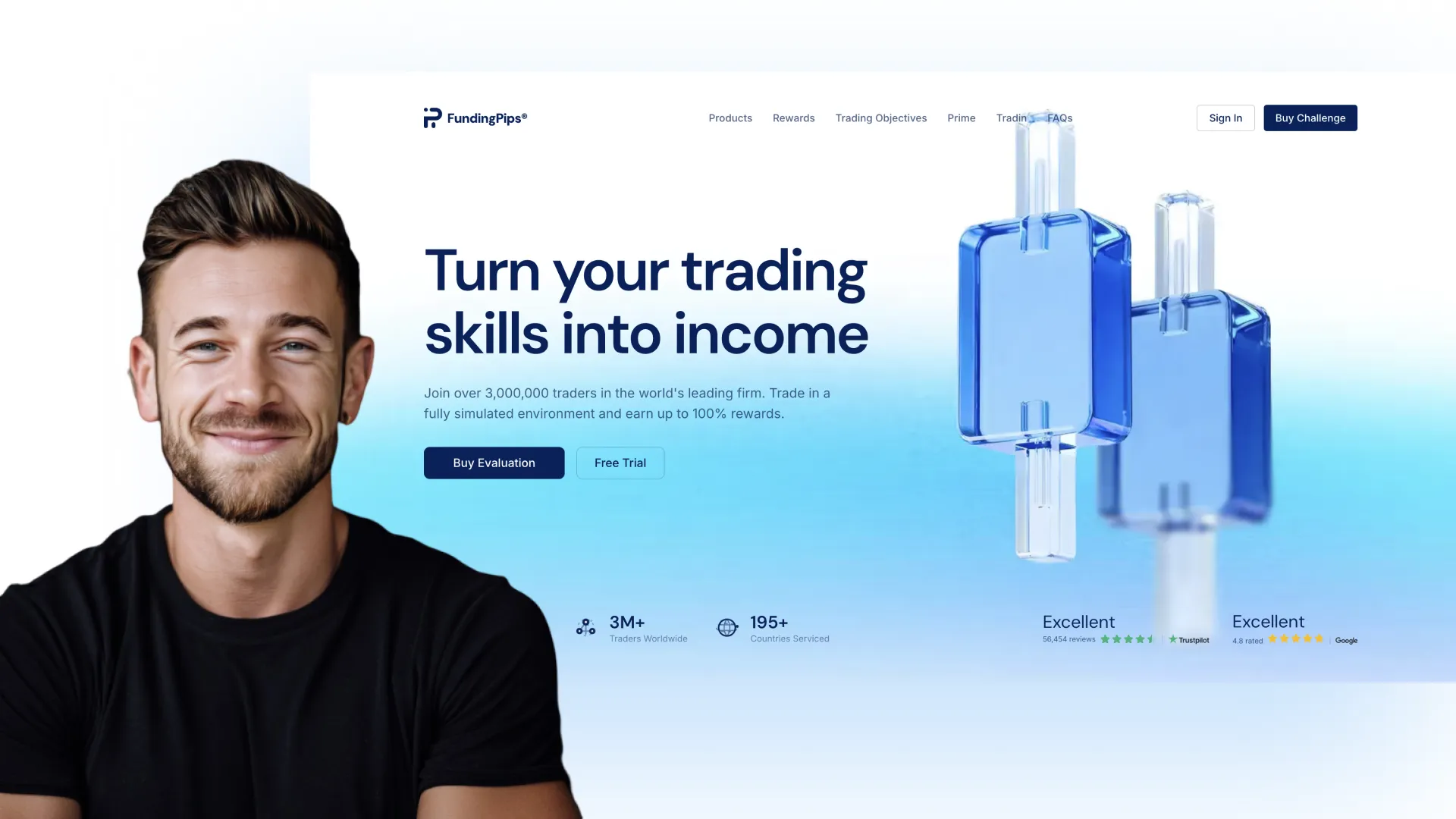
What is FundingPips?
FundingPips is a forex and CFD proprietary trading firm based in Dubai, operating since approximately 2021 to 2022. The firm offers four evaluation paths (1-Step, 2-Step, 2-Step Pro, and Zero instant funding) across account sizes from $5K to $200K, with tiered profit splits that climb from 60 percent to 100 percent on standard challenges, 95 percent on Zero, and 100 percent on the Hot Seat scaling track that reaches $2M in allocated capital. Payouts process within 24 hours via bank transfer or USDC crypto, and the firm supports MT5, MatchTrader, and cTrader.
FundingPips Overview
FundingPips is a forex/CFD prop firm that has become one of the largest players in the 2026 prop trading landscape, 52,648 Trustpilot reviews at a 4.5/5 rating gives them review volume comparable to the biggest names in the industry. The firm operates four distinct challenge programs: the 1 Step (single-phase evaluation), the 2 Step (two-phase evaluation, structurally safer), the 2 Step Pro (tighter rules + daily payouts), and FundingPips Zero (instant-funded, no evaluation). Each challenge type feeds into Master accounts with tiered profit splits and a shared 4-level Hot Seat scaling plan that reaches $2M capital for elite traders.
What sets FundingPips apart in 2026 is the depth of its challenge lineup combined with a scaling plan that meaningfully rewards consistency, 16 successful payable periods and 40% cumulative profit unlock Hot Seat, with doubled initial balance, 100% profit split, and $2M capital access. What works against it is pricing transparency (the help center doesn't publish per-size costs) and the Trustpilot 8% one-star cluster, which concentrates on account closures with unclear rule interpretations. The firm is legitimate with a solid payout record, but not every trader fits their ruleset cleanly.
I've been trading FundingPips since February 2025, 14 months of active trading, 5 successful payouts, $6,800+ withdrawn cumulative. This review covers every dimension of trading with FundingPips, the accounts, the rules, the payouts, the platforms, the trust signals, and the specific competitor comparisons that matter most. Data accurate as of April 2026.
Pros and Cons of FundingPips
Pros
- Four distinct challenge types (1-Step, 2-Step, 2-Step Pro, Zero) cover every trader profile and speed preference
- Tiered profit splits climb to 100 percent, plus a 4-level Hot Seat scaling plan that reaches $2M in capital
- Fast payouts processed within 24 hours, most within 6 to 12 hours, via bank transfer or USDC crypto
- Three platforms supported (MT5, MatchTrader, cTrader) with free instant switching and a Swap-Free add-on on MT5
- News trading allowed on 1-Step and both 2-Step variants
- 4.5/5 Trustpilot across 52,648 reviews, with fast payouts as the dominant positive theme
- Zero instant funding path skips the evaluation entirely for traders who want to start funded
- Exclusive code VIBES gives 20 percent off any challenge
Cons
- Pricing is not published on the help center, you have to open the purchase flow to see current fees per challenge and size
- Zero plan prohibits news trading and uses a 5 percent trailing drawdown based on highest recorded equity, the tightest risk profile in the lineup
- Hard breach model: hitting either the daily loss limit or the max drawdown ends the account immediately, no soft-breach pause
- Consistency rule can hold a payout until satisfied (resolves normally, but worth knowing before the first withdrawal)
- No MT4, no TradeLocker, no DXtrade, and no proprietary platform for traders who prefer those
FundingPips Quick Reference
| Firm type | Dubai-based forex and CFD prop firm |
|---|---|
| Founded | Approximately 2021 to 2022 |
| Challenge types | 1-Step, 2-Step, 2-Step Pro, Zero (instant funding) |
| Account sizes | $5K to $200K |
| Profit split | 60 to 100% tiered (standard), 95% (Zero), 100% (Hot Seat) |
| Max drawdown | 6% (1-Step, 2-Step Pro), 10% (2-Step), 5% trailing (Zero) |
| Daily loss limit | 3% (1-Step, 2-Step Pro, Zero), 5% (2-Step) |
| Scaling | Hot Seat 4-level plan reaching $2M capital |
| Payout speed | Within 24 hours, most in 6 to 12 hours |
| Payout methods | Bank transfer, USDC crypto |
| Platforms | MT5, MatchTrader, cTrader (free instant switching) |
| Trustpilot | 4.5/5 across 52,648 reviews |
FundingPips Account Types and Pricing
11 account types available.
| Plan | Price (VIBES) | Cycle | DLL | Split | Paul-tested |
|---|---|---|---|---|---|
| 2-Step Standard $5K | $36 | — | $250 | 60-100% tiered | No |
| 2-Step Standard $10K | $66 | — | $500 | 60-100% tiered | No |
| 2-Step Standard $25K | $156 | — | $1,250 | 60-100% tiered | No |
| 2-Step Standard $50K | $289 | — | $2,500 | 60-100% tiered | No |
| 2-Step Standard $100K | $529 | — | $5,000 | 60-100% tiered | No |
| 2-Step Pro $5K | $29 | — | $150 | 60-100% tiered | No |
| 2-Step Pro $100K | $399 | — | $3,000 | 60-100% tiered | No |
| 1-Step $5K | $59 | — | $200 | 60-100% tiered | No |
| 1-Step $100K | $555 | — | $4,000 | 60-100% tiered | No |
| Zero (Instant) $5K | $69 | — | $150 | 95% | No |
| Zero (Instant) $100K | $499 | — | $3,000 | 95% | No |
4 active challenge programs (April 2026)
FundingPips runs 4 distinct challenge types, all leading to Master accounts that share the Hot Seat scaling plan. Pricing varies by account size ($5K, $10K, $25K, $50K, $100K, $200K are the standard tiers, check current pricing in the purchase flow).
1 Step Challenge
Single-phase evaluation.10% profit target, 6% max loss, 3% daily loss limit, 3 minimum trading days.Fastest eval-based path to Master. 35% consistency rule applies only on On Demand Rewards. Master payouts: 60% Weekly, 80% Bi-Weekly, 90% On Demand, 100% Monthly.
Best for: traders with proven edge who want a single-phase fast route. See theFundingPips 1 Step guide.
2 Step Challenge
Two-phase evaluation.Phase 1: 8% or 10% target; Phase 2: 5% target. 10% max loss and 5% DLL per phase. 3-minimum-day each phase (6 total).Structurally safest evaluation. Same Master payout tiers as 1 Step.
Best for: traders with natural P&L variance who want max drawdown room. See theFundingPips 2 Step guide.
2 Step Pro Challenge
Tighter two-phase variant.6% profit target each phase, 6% max loss, 3% DLL, 1-minimum-day per phase.Master pays 80% Weekly (no consistency) or 80% Daily (with 35% consistency in evaluation). Dynamic leverage on metals/indices/energies.
Best for: skilled traders with tight sizing who want daily payouts. See theFundingPips 2 Step Pro guide.
FundingPips Zero
Instant Master access, no evaluation.No profit target, 5% trailing drawdown, 3% DLL, 15% consistency rule, 7 profitable days required per 30-day window.95% profit split bi-weekly. News trading prohibited. Dynamic leverage available.
Best for: traders with proven edge and balanced daily P&L who want to skip evaluation entirely. See theFundingPips Zero guide.
Which to pick
See theFundingPips account types pillarfor the full account-by-account comparison and thebest FundingPips account guidefor trader-type recommendations.
Who FundingPips Is For (And Who It Isn't)
Match yourself to FundingPips's structure before signing up. Based on the 11 account types, drawdown mechanic, and Paul's testing data.
- ·Beginners or rule-clarity-first traders — fixed floor, no trailing
- ·Anyone preferring simple math over flexibility
- ·Aggressive sizers — at least one plan has no consistency rule on funded
- ·First-time funded traders — 100% split tier on entry payouts
Plan Economics: What Each FundingPips Account Actually Costs You
The headline price isn't the full picture. Here's the per-account math — buying-power cost, risk buffer, and breakeven estimate based on standard 30%-buffer-utilization assumptions.
| Plan | Buy-in | Risk buffer | Cost per $1K BP | Breakeven* |
|---|---|---|---|---|
| 2-Step Standard $5K | $36 | $500 | $7.20 | ~1 cycles |
| 2-Step Standard $10K | $66 | $1,000 | $6.60 | ~1 cycles |
| 2-Step Standard $25K | $156 | $2,500 | $6.24 | ~1 cycles |
| 2-Step Standard $50K | $289 | $5,000 | $5.78 | ~1 cycles |
| 2-Step Standard $100K | $529 | $10,000 | $5.29 | ~1 cycles |
| 2-Step Pro $5K | $29 | $300 | $5.80 | ~1 cycles |
| 2-Step Pro $100K | $399 | $6,000 | $3.99 | ~1 cycles |
| 1-Step $5K | $59 | $300 | $11.80 | ~1 cycles |
| 1-Step $100K | $555 | $6,000 | $5.55 | ~1 cycles |
| Zero (Instant) $5K | $69 | $250 | $13.80 | ~2 cycles |
| Zero (Instant) $100K | $499 | $5,000 | $4.99 | ~1 cycles |
How to read this:
- Buy-in = price you pay to start the evaluation (with PTV code applied where available).
- Risk buffer = dollars between your starting balance and the Maximum Loss Limit — the absolute drawdown room before breach.
- Cost per $1K buying power = price ÷ starting balance × $1,000. Lower = cheaper leverage. Useful to compare account sizes within the firm and across firms.
- Breakeven estimate* = approximate number of payout cycles to recoup your buy-in, assuming you utilize 30% of your risk buffer profitably per cycle at the plan's profit split. This is a baseline expectation, not a guarantee — your actual cycle output depends on strategy and discipline.
*Breakeven uses a standard 30%-buffer-utilization-per-cycle assumption. Aggressive sizing can shorten breakeven (and increase breach risk); conservative sizing extends it.
Sweet spot for new users: 2-Step Pro $5K at $29 is the cheapest entry to learn FundingPips's rules without risking a larger buy-in. If you're already confident in your strategy, sizing up to 2-Step Standard $50K typically improves your cost-per-$1K-buying-power ratio.
How FundingPips Drawdown Works
Static MLLFundingPips uses a static Maximum Loss Limit — a fixed dollar amount below your starting balance that never moves. Simplest mechanic to track, with rule clarity instead of flexibility.
How FundingPips's mechanic works in practice
- MLL set once at account creation, never recalculated.
- On a $5,000 account, MLL stays at $4,500 for the lifetime of the account.
- No trailing means no protection from a losing streak after a winning one — the MLL doesn't rise to lock in profits.
- No lock either — the floor is the same on Day 1 and Day 365.
Best fit
Best for beginners or rule-clarity-first traders. The simplest math in the industry — no recalculation, no surprises.
What to watch out for
- Long losing streaks eat directly into the fixed buffer with no protection from prior profits.
- Static MLL favors short bursts of trading over long-term accumulation — once you're down 50% of the buffer, recovery is harder than under trailing.
- No reward for consistency — your buffer doesn't grow with your account.
FundingPips vs Same-Mechanic Alternatives
3 other firms use the same drawdown mechanic. Side-by-side on the dimensions that matter most when choosing within a category.
| Firm | Plans | Cheapest | Mechanic |
|---|---|---|---|
| FundingPips This page | 11 | $29 | static |
| Instant Funding | 4 | $47 | static |
| Rev One Trading | 5 | $89 | static |
| WarBux | 7 | $49 | static |
All firms in this table use static drawdown. See all drawdown mechanics →
How FundingPips Payouts Actually Work
5 payout methods supported.
Payout method comparison
| Method | Fees | Speed | When to use |
|---|---|---|---|
| Bank wire | $10-30 typical | 1-3 business days | Universal but expensive. Use only when others unavailable. |
| Visa Direct | — | — | — |
| Mastercard | — | — | — |
| Crypto | Network gas only | Minutes | USDC/USDT typical. Fastest for international traders. |
| Riseworks | Free for traders | Same-day after request | Tradeify-class platform — 7 days/week processing. |
Practical takeaway: FundingPips's cycle length means you can realistically expect multiple payouts per month on a profitable funded account. The actual processing time after request varies by method — pick the option that matches your residency and crypto-comfort.
FundingPips Trading Rules
The rule stack
Max loss limits (varies by challenge):
- 1 Step: 6% of initial account size
- 2 Step: 10% per phase (carries into Master)
- 2 Step Pro: 6% per phase
- Zero: 5% trailing based on highest equity
Daily loss limits:
- 1 Step: 3% of higher of (daily start balance or current equity)
- 2 Step: 5% of higher of (daily start balance or current equity)
- 2 Step Pro: 3%
- Zero: 3% + -1% floating PnL limit
Profit targets (evaluation phase):
- 1 Step: 10%
- 2 Step: 8% or 10% Phase 1, 5% Phase 2
- 2 Step Pro: 6% per phase
- Zero: None (instant Master)
Minimum trading days:
- 1 Step: 3
- 2 Step: 3 per phase (6 total)
- 2 Step Pro: 1 per phase (2 total)
- Zero: 7 profitable days per 30-day window
Consistency rule:
- 35% on standard challenges, applied only to On Demand Rewards (90% split)
- 35% on 2 Step Pro if Daily reward cycle selected, applies to evaluation phases
- 15% on Zero(strictest), applied at every payout request
Risk per trade (Master):
- 3% of initial account size for accounts below $50K
- 2% for $50K+
News trading:
- Allowed on 1 Step and 2 Step (both standard and Pro)
- Prohibited on Zero (no holding during high-impact news, no trading 10 min before/after affected-currency releases)
Weekend holding:
- Allowed on 1 Step and 2 Step
- Prohibited on Zero
Max lot size:
- Zero: 20 lots max per single trade
- Other challenges: no explicit single-ticket cap but 3%/2% risk-per-trade applies
For the complete rule framework see theFundingPips rules overview. For the consistency rule specifically, see theFundingPips consistency rule guide. For drawdown math, see theFundingPips max drawdown guide.
Hot Seat scaling plan
4 levels. All scale-ups calculate from original account size (merged accounts still scale from initial).
| Level | Name | Requirements | Capital Boost |
|---|---|---|---|
| 1 | Launchpad | 4 rewards + 10% profit | +20% |
| 2 | Ascender | 8 rewards + 20% profit | +30% |
| 3 | Trailblazer | 12 rewards + 30% profit | +40%, max DD raised to 13% |
| 4 | Hot Seat | 16 rewards + 40% profit | 2× initial, 100% split, up to $2M, $100-500 monthly bonus |
See theFundingPips scaling plan guidefor full mechanics.
Strategies and Best Practice
Strategy framework for FundingPips
Three instrument categories dominate profitable FundingPips trading in 2026:
Forex majors (EUR/USD, GBP/USD, USD/JPY).Dominant liquidity. Tight spreads on Raw pricing. Fits the daily loss limit well since normal intraday volatility stays inside 3-5% on 1-lot position sizes.
XAUUSD (gold).High profit potential but volatile, dynamic leverage on Zero and 2 Step Pro reduces blow-up risk. 35% consistency rule on On Demand can trigger on big gold days.
Indices (NAS100, US30, DE40).Larger moves than forex but also larger stops required. Dynamic leverage on 2 Step Pro and Zero caps position size automatically.
Common pitfalls:
- Oversizing early on 1 Step, the 3% DLL fills fast on 2-3% position sizes
- Ignoring the 35% consistency rule on On Demand Rewards until the first held payout
- Holding Zero positions over weekends (prohibited, breach triggers)
- News-trading on Zero (prohibited, 10-min window restriction)
- Relying on dynamic leverage rather than manual position sizing, the auto-tightening prevents blow-ups but doesn't replace good risk management
See theFundingPips strategy pillarfor the full framework. Instrument-specific guides:gold strategy,forex strategy,indices strategy. For the consistency-friendly approach, see the35% consistency strategy guide.
FundingPips Platforms
3 native trading platforms
MT5 (MetaTrader 5), the most popular choice. Supports the Swap-Free add-on for overnight forex and metals. Full algorithmic trading via EAs. Large indicator ecosystem.
MatchTrader, newer platform option, web-based and desktop. Cleaner UI than MT5 but smaller indicator library.
cTrader, best for manual order execution and advanced charting. Level 2 data and depth-of-market visibility built in.
Platform switching between accounts is free and instant through the dashboard. All three platforms provide equivalent execution quality and data feeds, the choice is ergonomics and existing workflow.
See theFundingPips platforms guidefor deep dives on each. For specific setup instructions see theMT5 setup guideandcTrader setup guide.
Trust and Legitimacy
Trust signals
Trustpilot: 4.5/5 across 52,648 reviews.Massive review volume, at this scale the rating is statistically stable. Distribution: 82% 5-star, 7% 4-star, 2% 3-star, <1% 2-star, 8% 1-star.
Top positive themes (in order of frequency):
- Fast payouts (typically within 24 hours)
- User-friendly platform interface
- Responsive, professional customer support (F. Babar named repeatedly)
Top 1-star complaint themes:
- Account closures without clear explanations
- Rule application confusion (daily loss calculations, profitable-day definitions)
- Unclear policy communications
FundingPips responds to 99% of negative reviews within 24 hours, the pattern is responsive, not evasive. Most 1-star reviews receive a detailed reply citing the specific rule and providing contact for escalation.
Operational longevity:FundingPips has been operating since roughly 2021-2022. Not as long as FTMO (2015) but longer than many newer entrants. The 52k+ review base required multi-year operation to accumulate.
Payout infrastructure:Uses standard bank transfer + crypto (USDC) + Rise for disbursements. No reports of payout processor failures in recent Trustpilot reviews.
For the trust framework see theis FundingPips legit guideand the detailedFundingPips Trustpilot analysis.
How FundingPips Compares
FundingPips vs FTMO
FTMO has the longer reputation and a more conservative single 2-step model. FundingPips offers more challenge variety (four paths vs one), faster 24-hour payouts, and a deeper scaling plan to $2M via Hot Seat.
FTMO is the legacy forex prop name with a tightly defined evaluation and strong brand trust. FundingPips wins on flexibility (1-Step, 2-Step, 2-Step Pro, Zero), payout speed, and scaling ceiling. If you want the most established name, FTMO. If you want choice of challenge structure and faster cash, FundingPips.
FundingPips vs FundedNext
FundedNext and FundingPips both run multi-model challenge lineups with fast payouts. FundingPips edges ahead on scaling depth (Hot Seat to $2M) and platform choice; FundedNext has its own consistency-friendly structures.
Both are modern multi-challenge forex firms with 24-hour-class payouts. FundingPips has the broader platform support (MT5, MatchTrader, cTrader) and the deeper scaling ceiling. FundedNext competes on its own model variety and promotional pricing. The pick comes down to which challenge structure matches your edge.
FundingPips vs The Funded Trader
The Funded Trader runs aggressive promotions and a wide challenge menu. FundingPips counters with a cleaner rule set, consistent 24-hour payouts, and a 4.5/5 Trustpilot record across 52,648 reviews.
The Funded Trader leans on promotions and high-ceiling marketing. FundingPips focuses on payout reliability and a transparent four-challenge structure. For traders who prioritize a proven payout track record over headline promos, FundingPips is the steadier pick.
FundingPips Deep Comparison
Key competitor comparisons
vs FTMO, FTMO has longer operational history (since 2015) and stricter evaluation rules. FundingPips has 4 challenge types to FTMO's 2 and typically cheaper pricing at comparable sizes. See theFundingPips vs FTMO comparison.
vs FundedNext, Direct competitor with similar challenge variety. FundingPips leads on Trustpilot volume (52k vs ~20k reviews). See theFundingPips vs FundedNext comparison.
vs Alpha Capital, Alpha Capital specializes in instant-funded with strict rules. FundingPips Zero is the closest match but FundingPips has broader product variety. See theFundingPips vs Alpha Capital comparison.
vs E8 Markets, E8 has slightly tighter drawdown rules and smaller account maximums. FundingPips' Hot Seat tier reaches $2M vs E8's lower ceiling. See theFundingPips vs E8 Markets comparison.
vs Top One Futures, Different instrument class entirely (FundingPips is forex/CFD, Top One Futures is futures). Traders who want both forex and futures prop access run one account at each. See theFundingPips vs Top One Futures comparison.
vs Lucid Trading, Lucid is Futures-first; FundingPips is Forex/CFD-first. Different trader audiences. See theFundingPips vs Lucid Trading comparison.
Internal: Zero vs 2 Step, FundingPips' two flagship products serve different trader profiles. See theZero vs 2 Step comparison.
FundingPips FAQ
Is FundingPips legit?
How much does FundingPips cost?
How long does FundingPips take to pay out?
What is the FundingPips max drawdown?
Which FundingPips challenge should I choose?
Can I trade news on FundingPips?
What platforms does FundingPips support?
What is the FundingPips profit split?
What is the Hot Seat program?
Does FundingPips have a consistency rule?
Is FundingPips better than FTMO?
How long has FundingPips been around?
Can I have multiple FundingPips accounts?
The Bottom Line
After 14 months, 5 payouts, and $6,800 or more withdrawn, FundingPips is the forex prop firm I keep coming back to for its sheer range. The four challenge types cover any edge profile, payouts land within 24 hours, and the Hot Seat scaling plan to $2M gives genuine room to grow. The main caveat is the hard-breach risk model and unpublished pricing, so open the checkout (with code VIBES for 20 percent off) to see your exact fee before committing.
Methodology 14 months · 5 payouts · $6.8K · last tested May 2026
Every review on PTV comes from accounts I fund and trade with my own money. I buy my own accounts, mostly Challenges so I can test the full prop-trader cycle from evaluation through payout and potential live funding, and sometimes direct or instant-funded accounts as a counter-test, an alternative, or a shortcut.
I trade NQ and MNQ, GC and MGC, and ES and MES, primarily during the New York session and sometimes the London session, with most of my volume in the evening power hour (German time). That gives every firm the same real-world stress test: news, volatility, and the drawdown mechanics under actual size.
On FundingPips I have traded funded accounts since February 2025, with 5 successful payouts and over 6,800 dollars withdrawn.
Pricing and rules are verified against FundingPips's official help center the week of last test. Ratings reflect fit for active futures traders, not a one-size-fits-all score.
Update Log 1 change
